
With Docutain Premium you can add reminders to documents. For example, to be reminded that you still have to pay an invoice or that a contract needs to be terminated.
You will be reminded via push notification.
How to activate this function is explained here:
1. Add a reminder to a new document
2. Add a reminder to an already saved document
1. Add a reminder to a new document
Scan/ import your document.
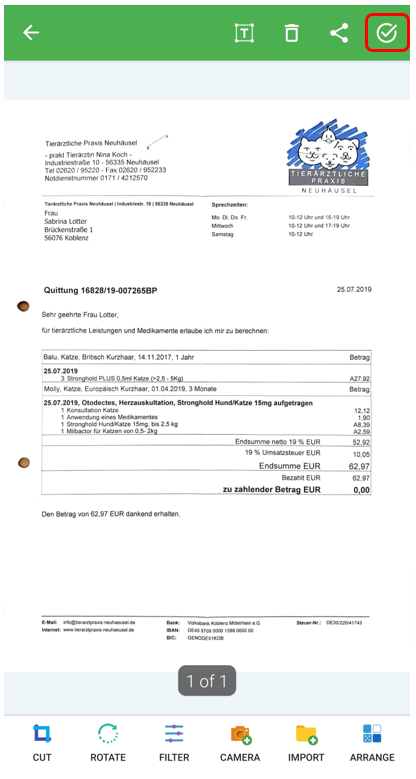
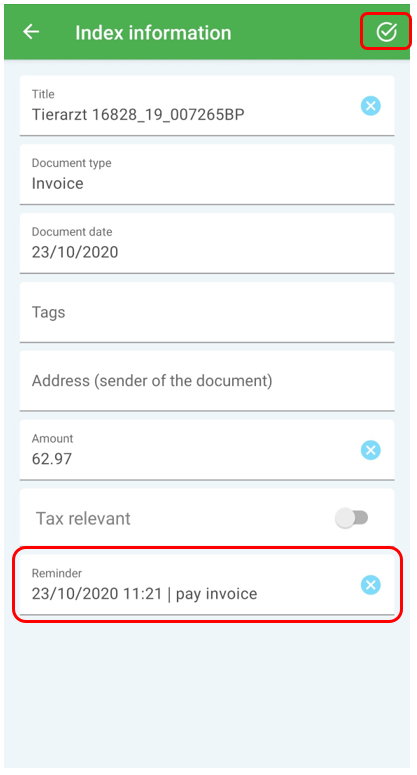
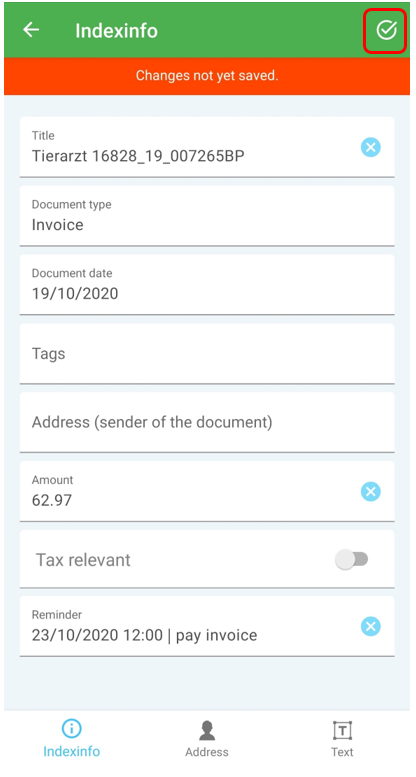
You are now in Edit mode. Tap on the "check"symbol in the upper right corner to get to the index information. Here you will find the reminder function on the bottom.
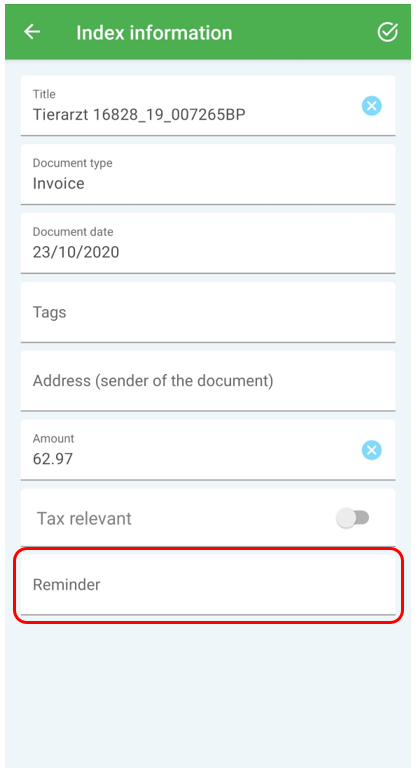
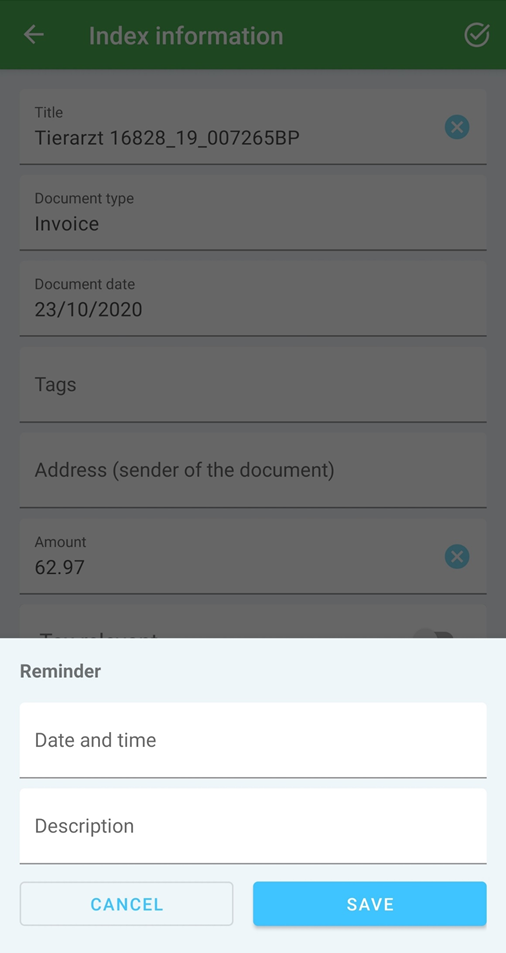
Tap on "Reminder" to set the desired reminder with date, time and description.
Once you have entered the data, please tap on "Save".
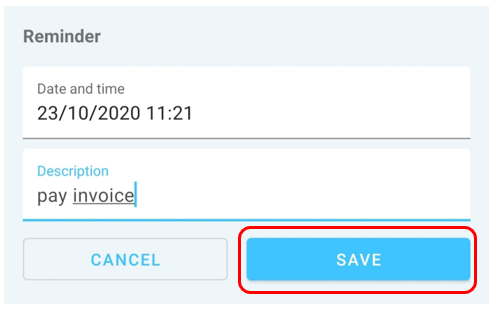
The reminder has now been set. Please save the changed index information by tapping on the "check" symbol in the upper right corner.
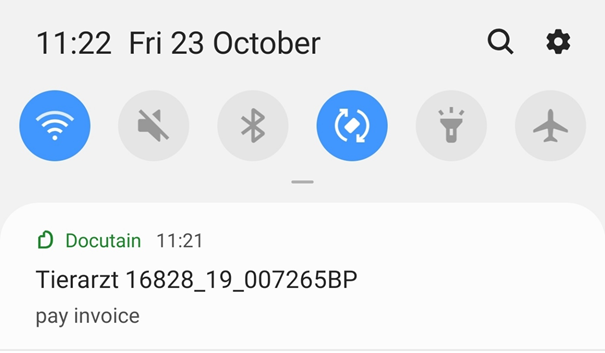
If the time is reached, you will receive a push notification on your device. By clicking on the notification, you will be directed to your document.
2. Add a reminder to an already saved document
Select your desired document and open the index information by clicking on the "i" icon.

The reminder function is located in the lower area.
Tap on "Reminder" to set the desired reminder with date, time and description.
Once you have entered the data, please tap on "Save".
The reminder has now been set. Please save the changed index information by tapping on the "check"-symbol in the upper right corner.
If the time is reached, you will receive a push notification on your device. By clicking on the notification, you will be directed to your document.
3. Change reminder
Open your document and click the "i" icon to open the index information.
In the lower area you will now see your previously set reminder.
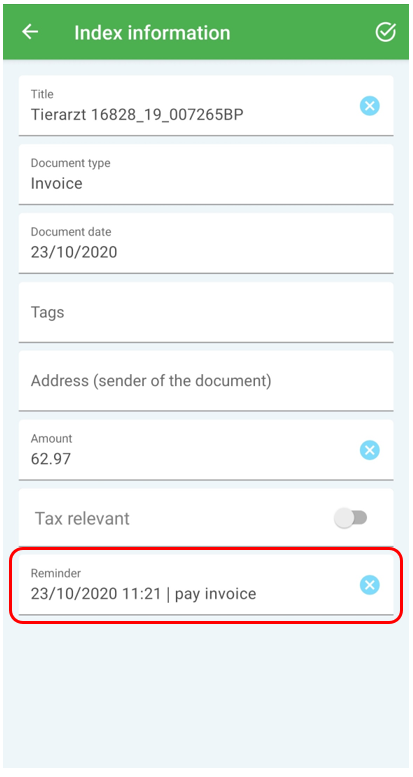
Now tap on the reminder to enable editing.
Enter your desired reminder and confirm the changes with tap on "Save".
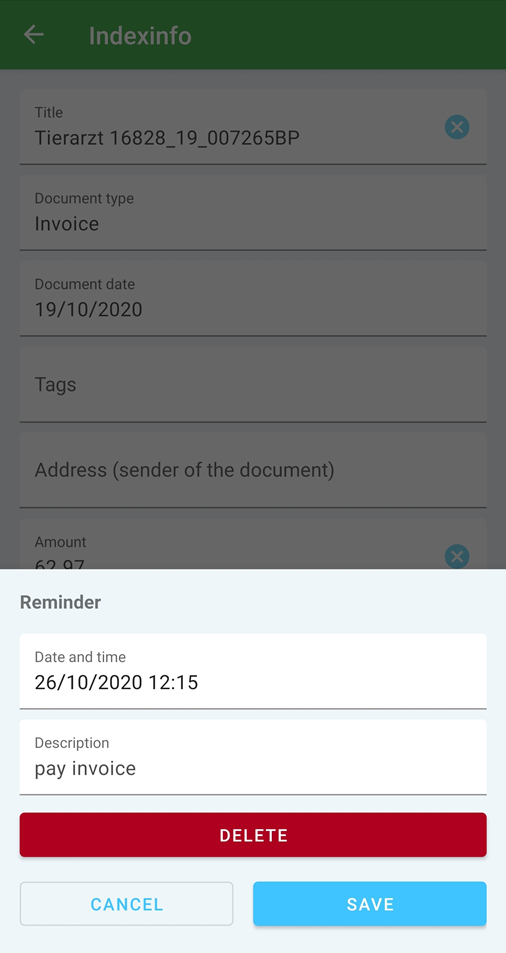
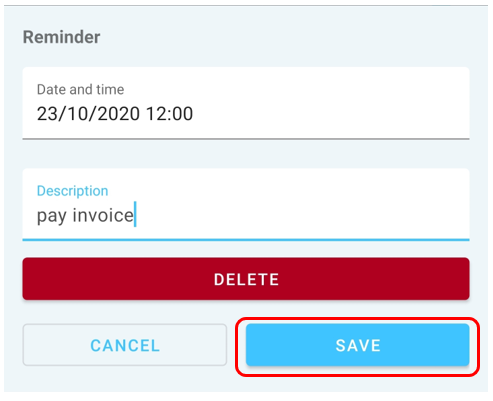
The changed times are now included in the index information. However, in order to save the changes in the document itself, you have to save the changes by clicking on the "check" icon.
4. Save reminder in calendar
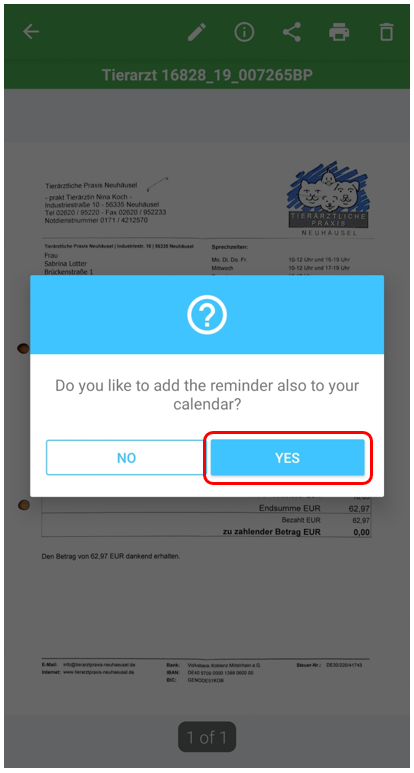
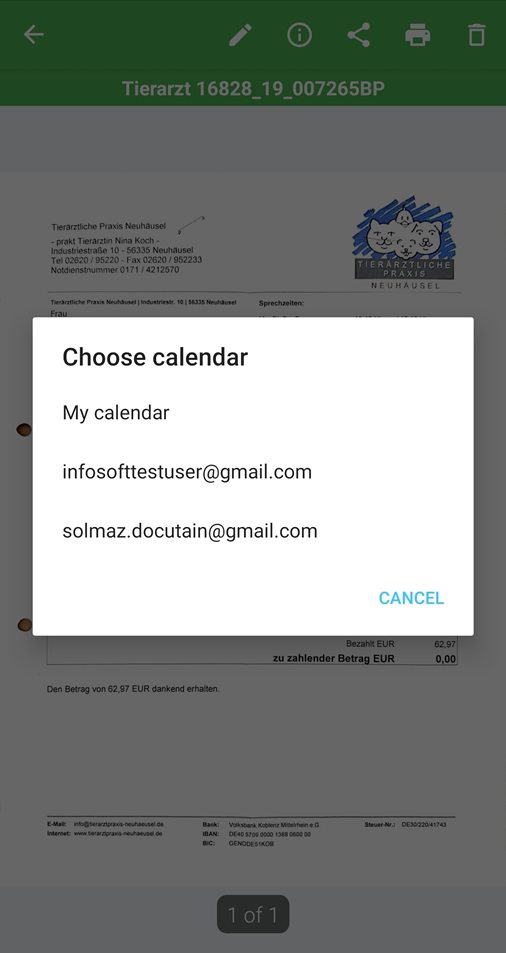
After you have entered and saved your reminder, you have the possibility to add it to your calendar.
To do this, tap on "Yes".
Important: Please allow Docutain the access to your calendar afterwards.
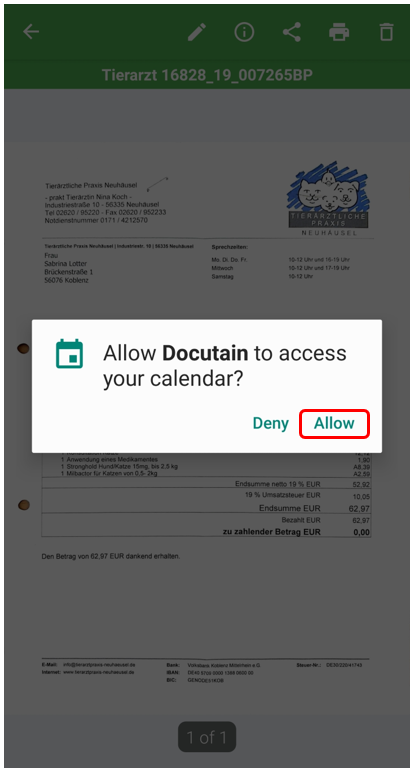
Now you can choose in which calendar you would like to save the reminder.
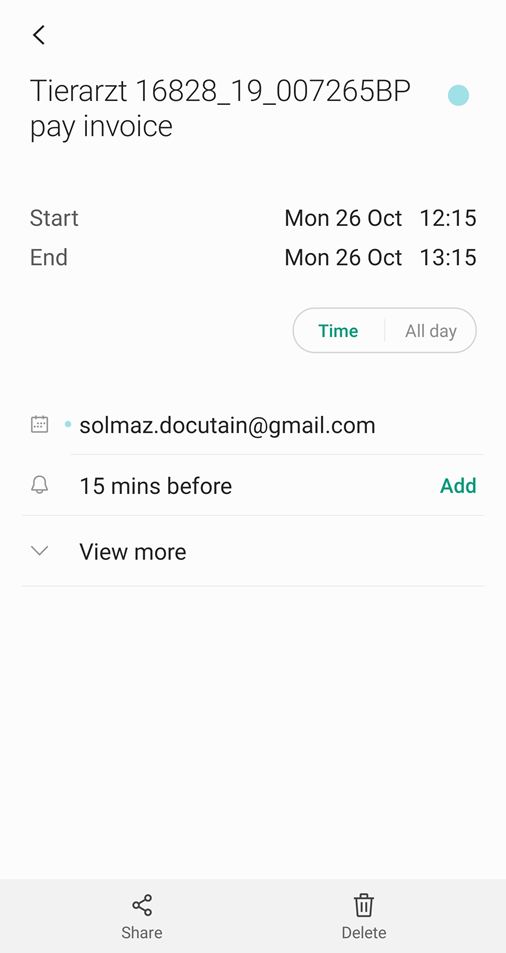
Your reminder will finally be displayed in the calendar, starting with the name of the document following the reminder text.
Comments
0 comments
Please sign in to leave a comment.