
Docutain allows you to create addresses you can assign to your documents.
How these are created or changed is explained here:
1. Add a new address
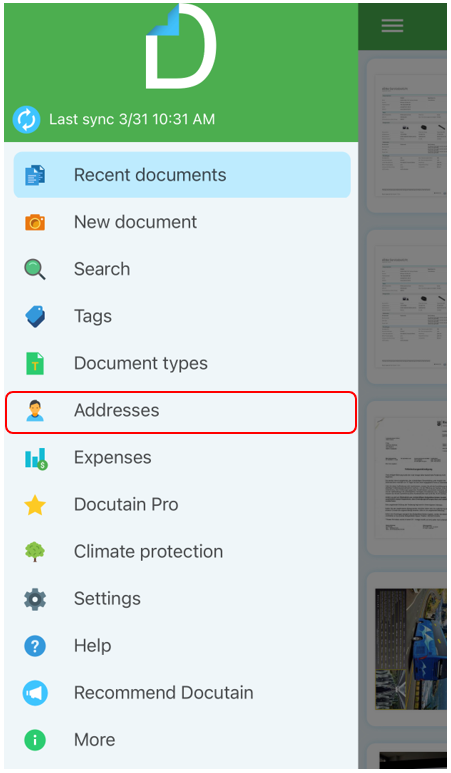
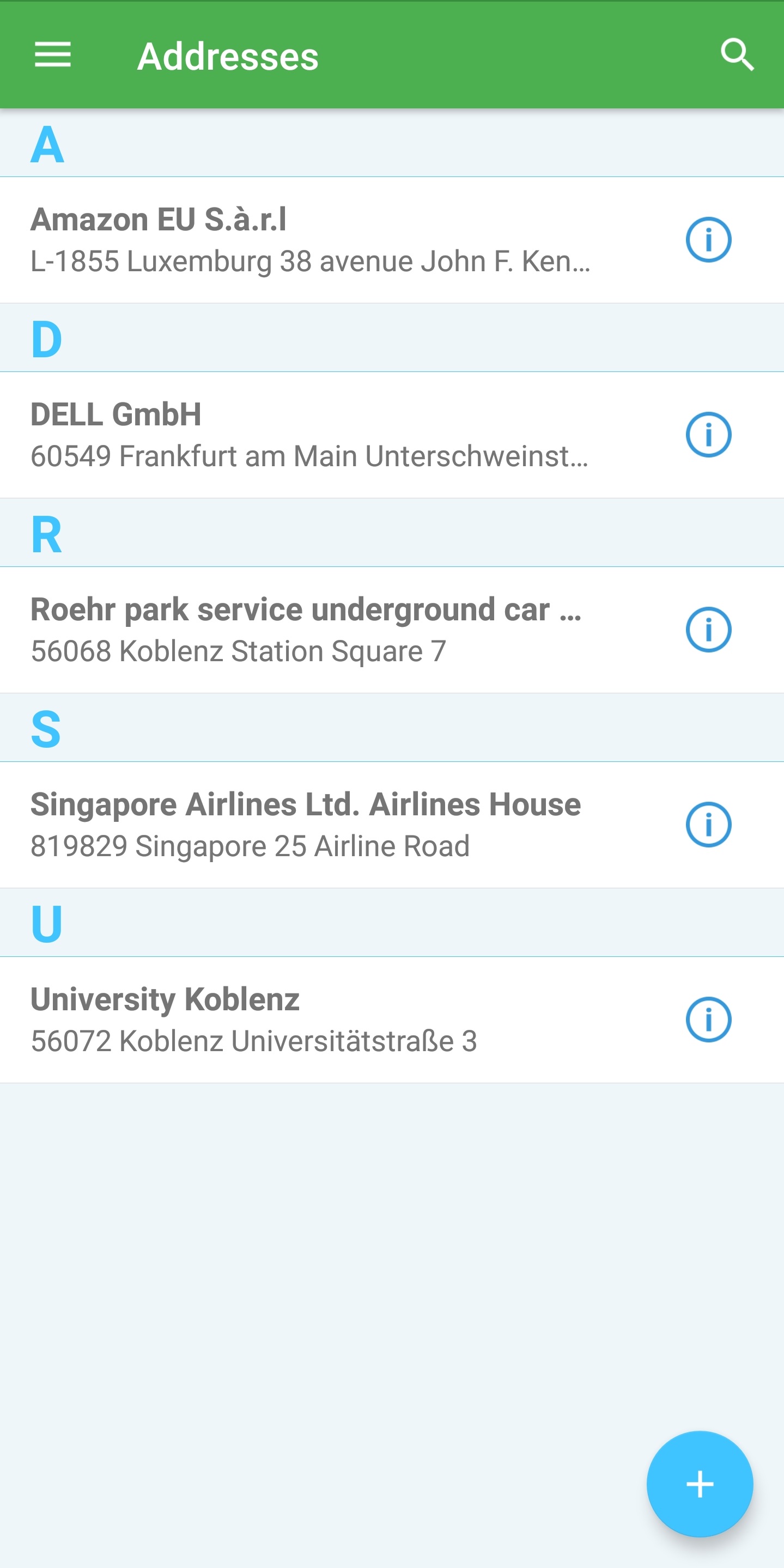
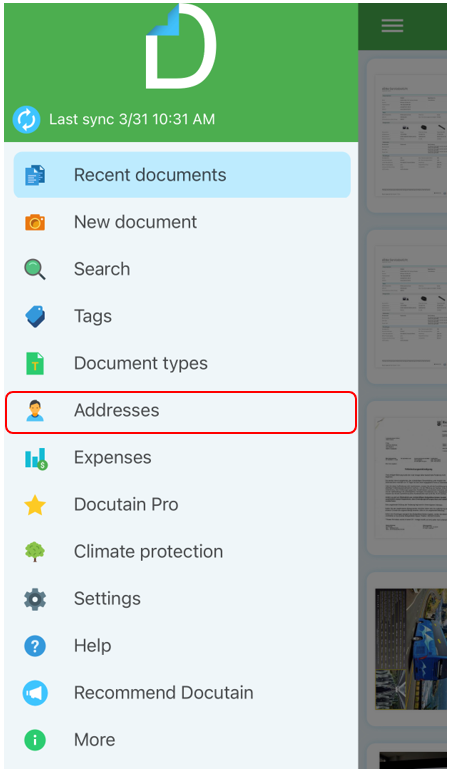
Select "Addresses" in the main menu and tap the "plus" icon in the lower right corner.
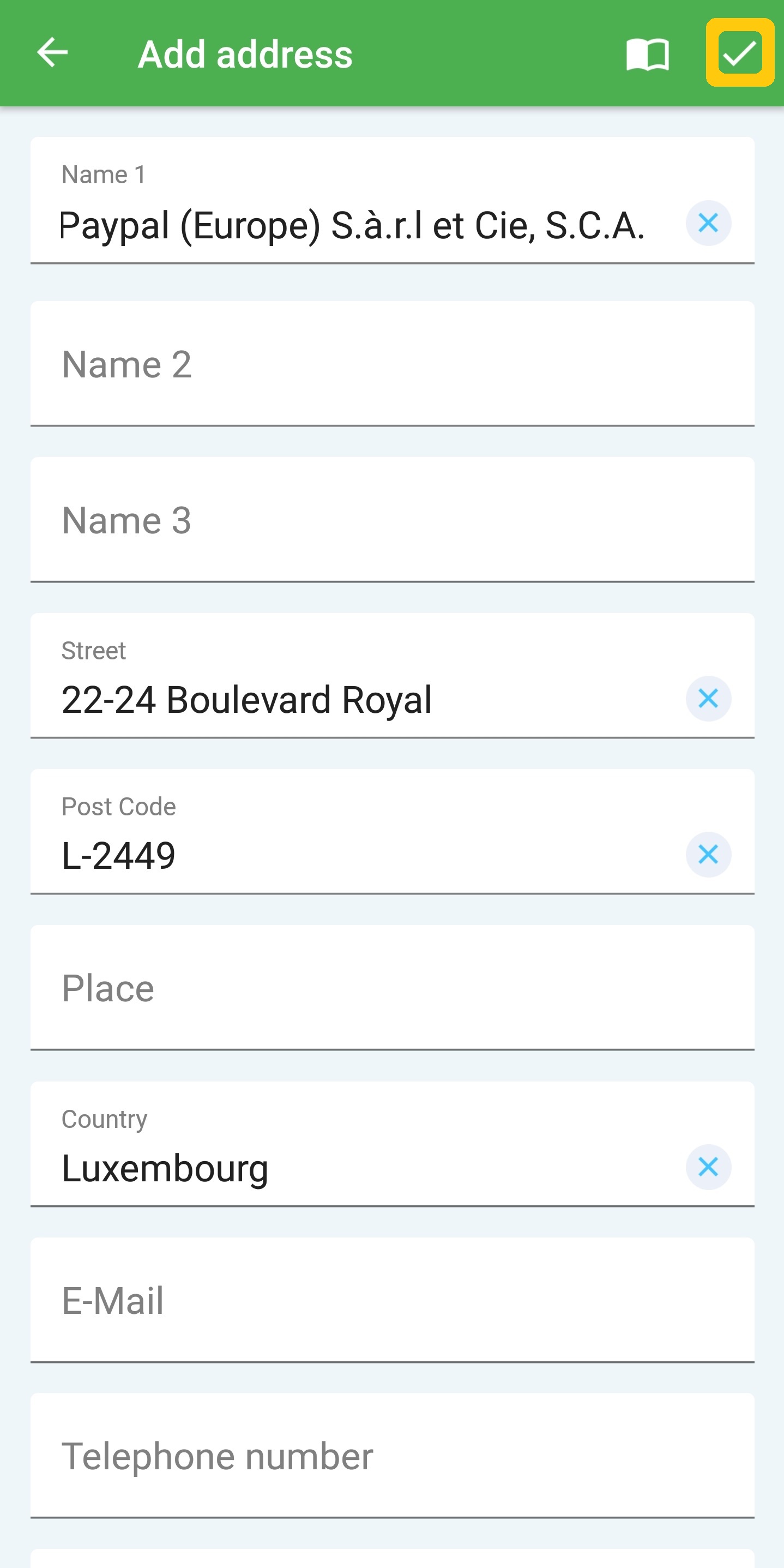
Complete the mask to create a new address and confirm the data with the "checkmark" icon on the right side of the screen.
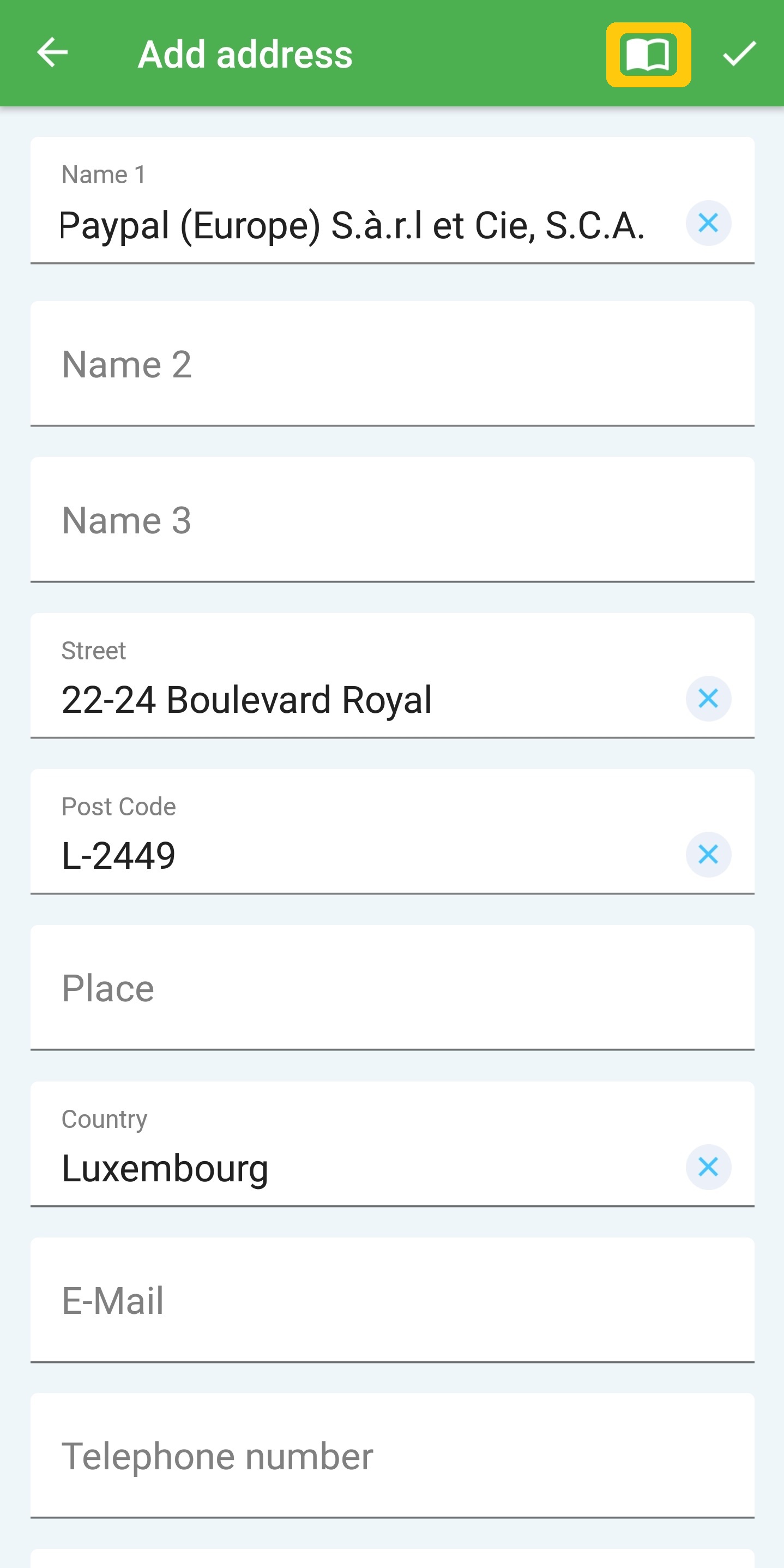
Alternatively, you can also import your contacts via the button to the left of the "checkmark" icon.
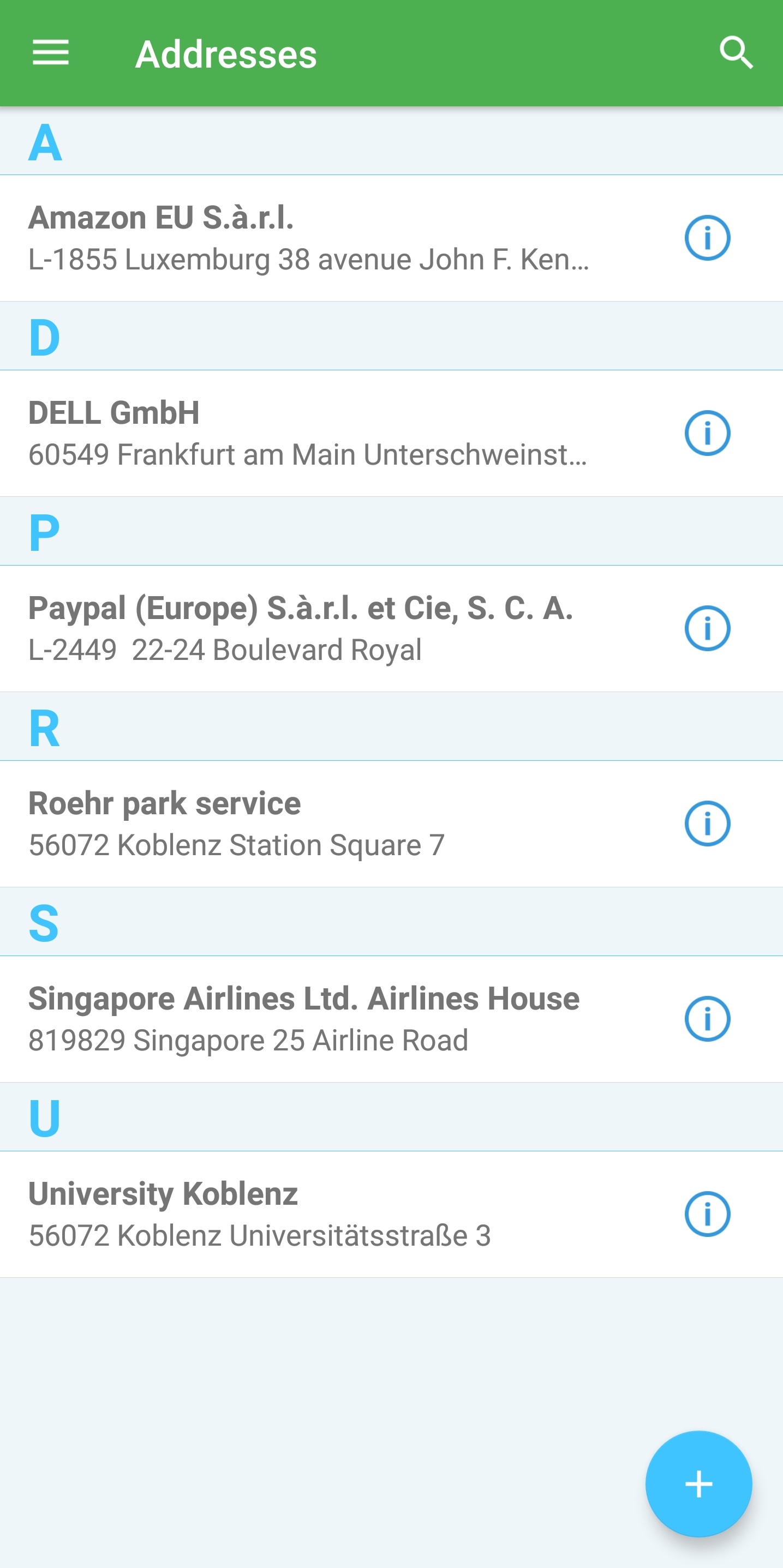
If you have saved the address, it appears in the overview and can be selected. Tapping an address opens a list of all documents that have been assigned to the address.
2. Edit an address
Tap on "Addresses" in the main menu. The addresses you have already saved will now be displayed. Then tap on the "i" icon to get to the address information.
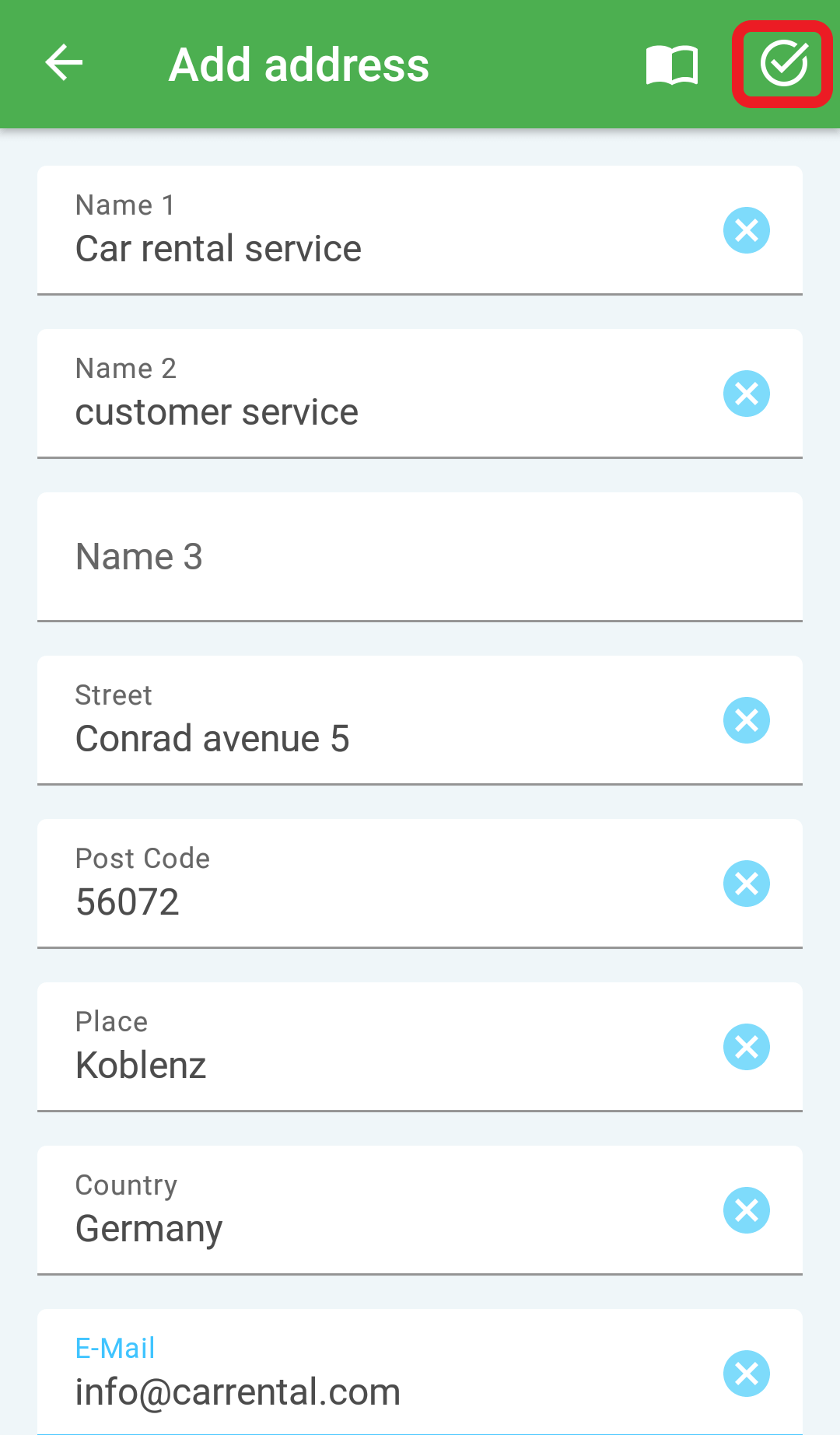
Edit the address and save by tapping on the "check mark" icon.
Comments
0 comments
Please sign in to leave a comment.