
Docutain allows you to create document types that can be assigned to your documents.
How these are created or changed is explained here:
1. Create a document type via main menu
1. Create a document type via main menu
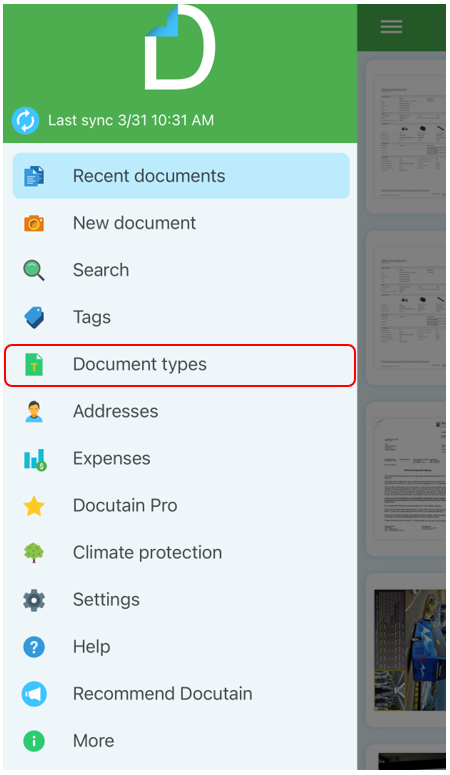
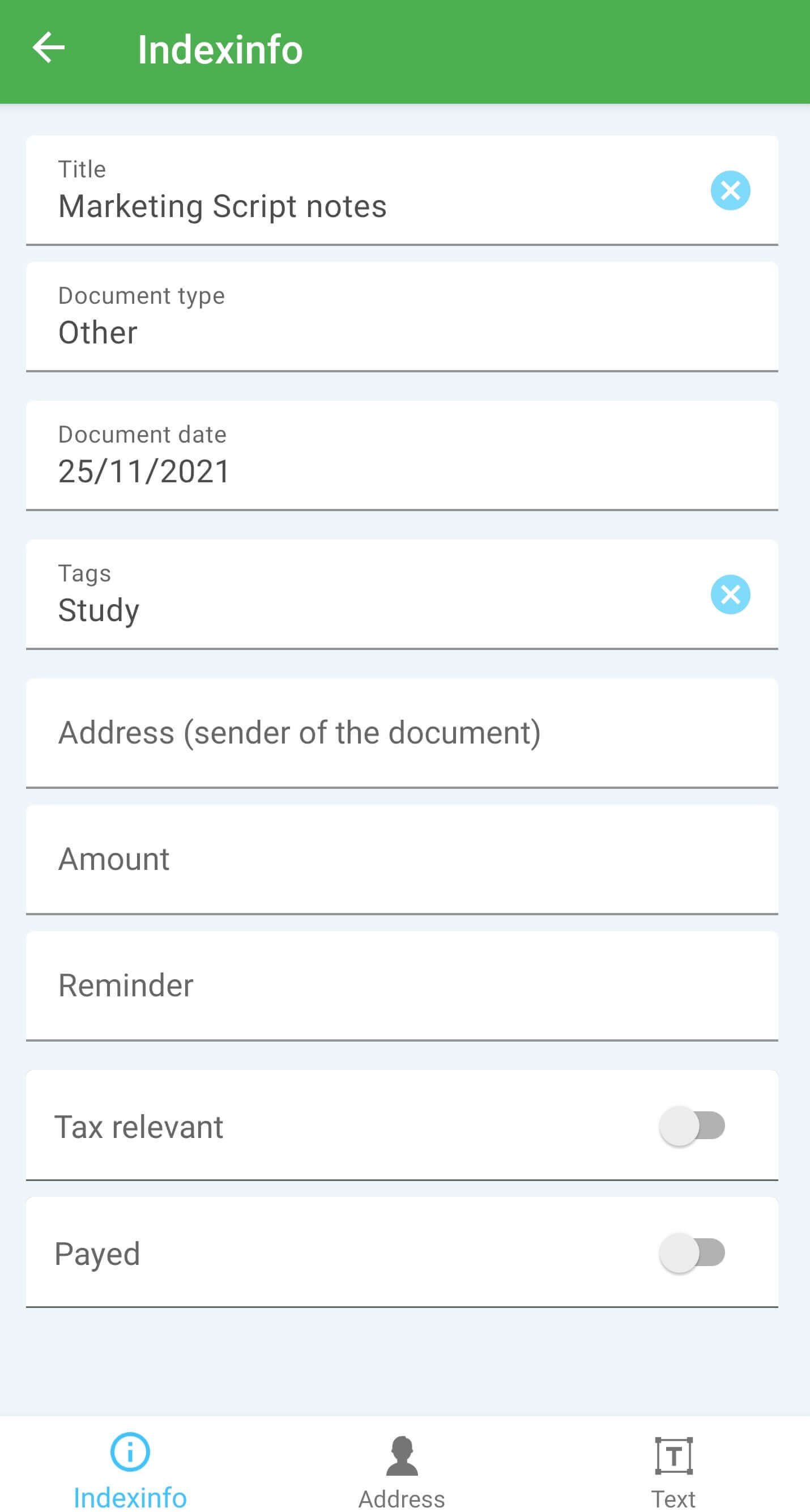
Select "Document types" from the main menu or tap in the Document types field while creating a document.
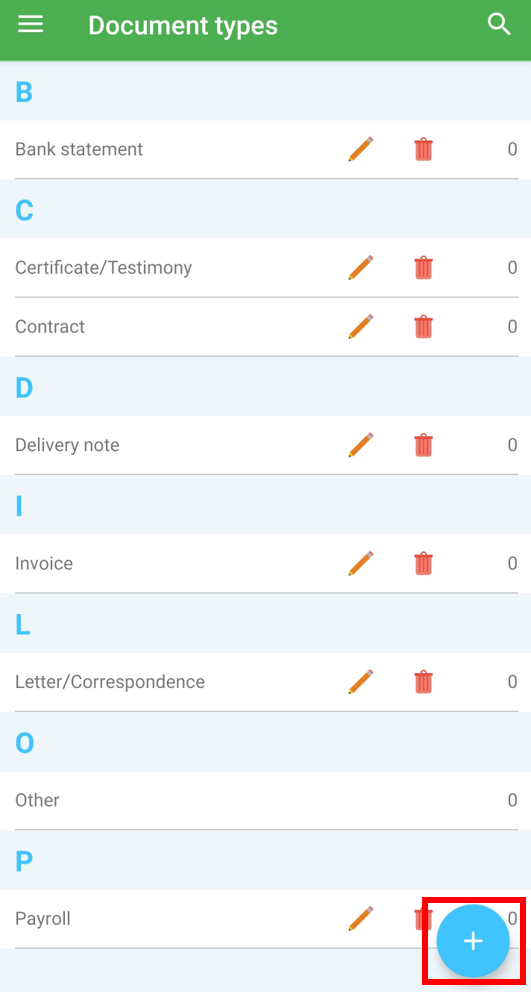
Tap on the blue "plus" symbol at the bottom right to create a new document type.
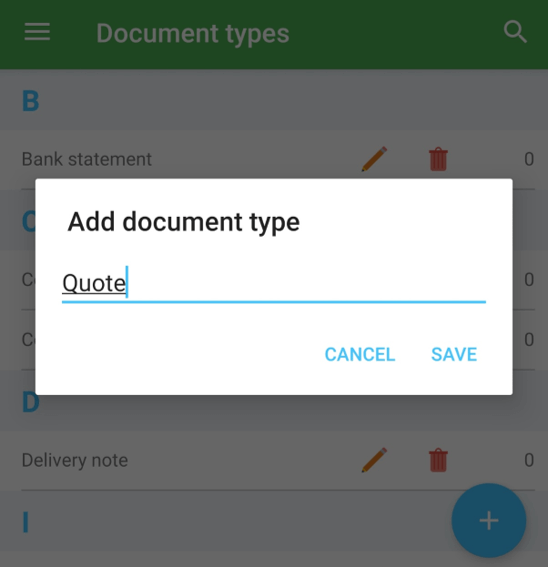
Then assign a name for your new document type and confirm by tapping on "Save".
Your new document type is now available.
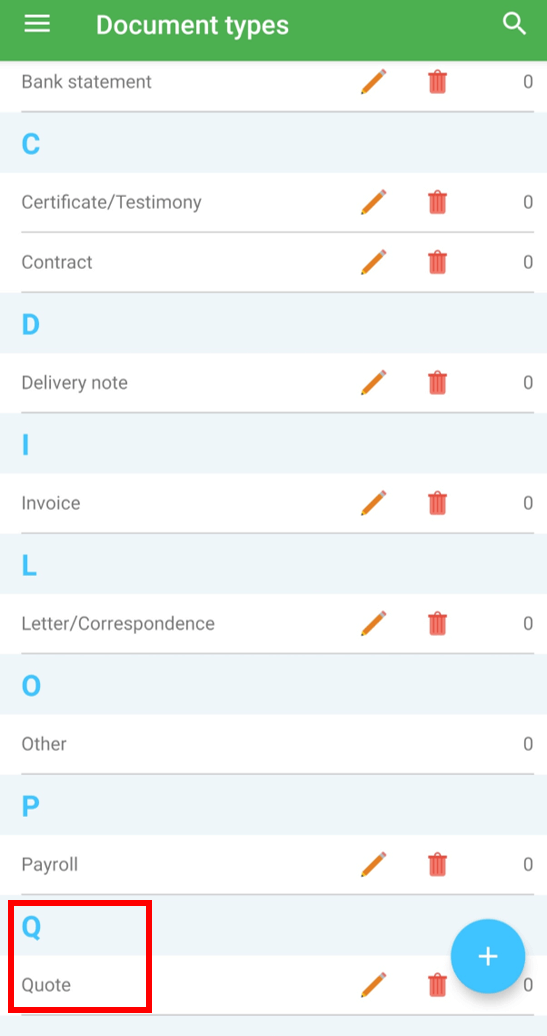
2. Change a document type
Select "Document type" from the main menu.
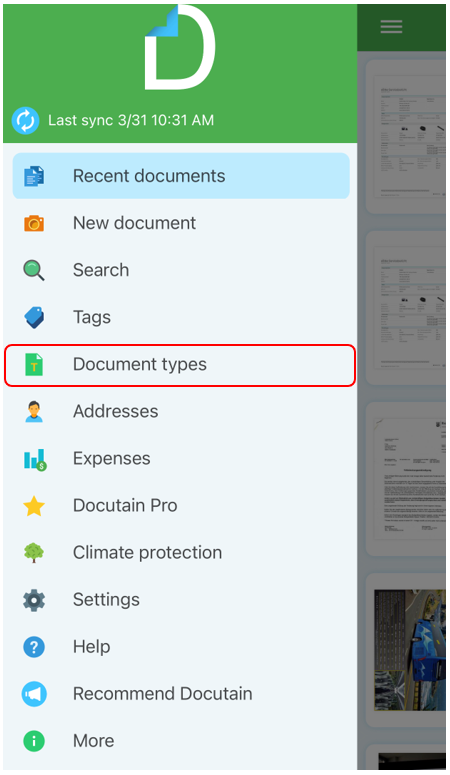
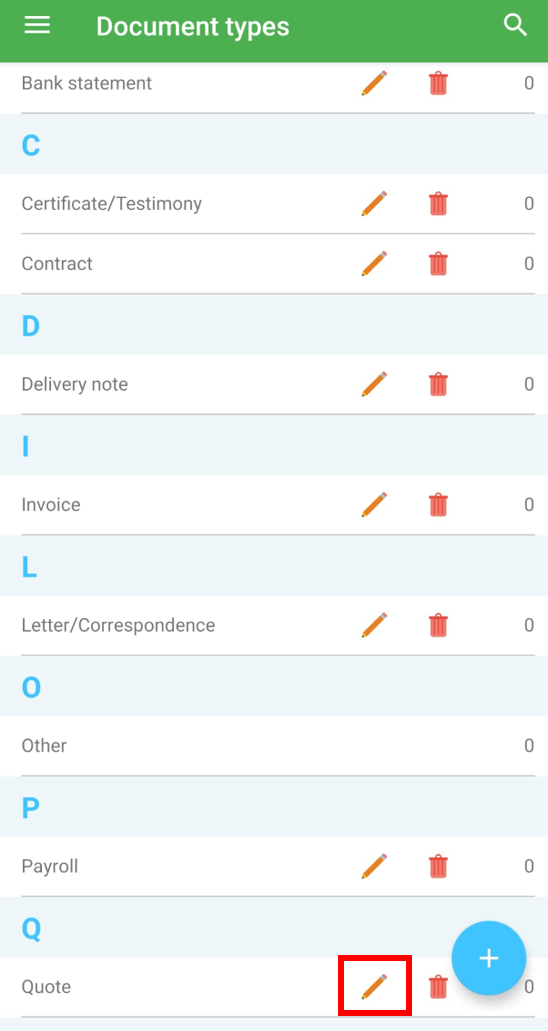
Then tap on the "pencil icon" behind the document type you want to change.
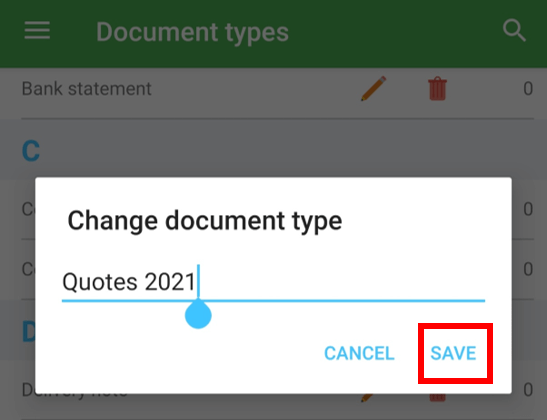
Change the document type as desired and confirm by tapping on "Save".
3. Delete a document type
Open the document type menu and tap on the "bin" behind your document type to delete it.
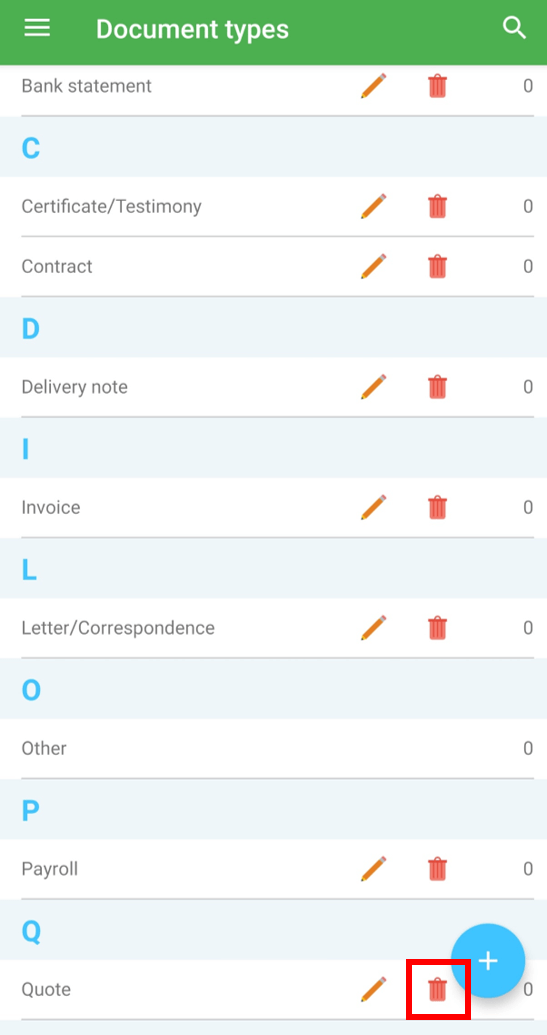
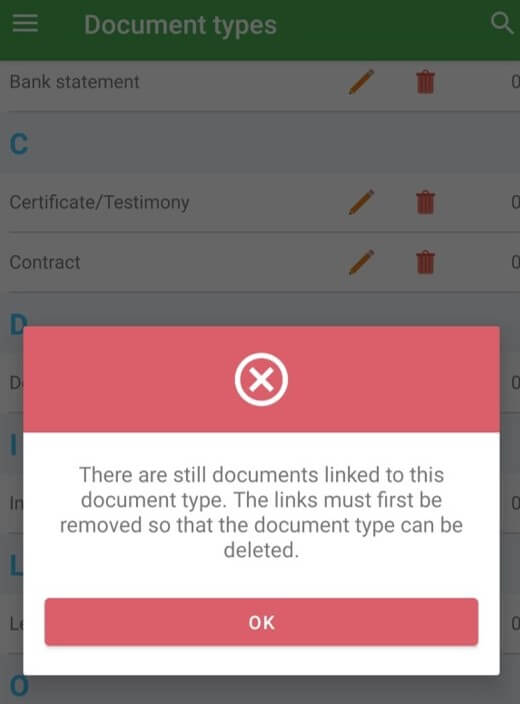
Note: A document type can only be deleted if there are no documents linked to it (the number behind your document type is "0"). Otherwise, you will receive an error message.
Comments
0 comments
Please sign in to leave a comment.