
There are three options to share documents in Docutain:
1. Send directly after scanning
3. Send multiple documents at once
Those are explained as follows:
1. Send directly after scanning
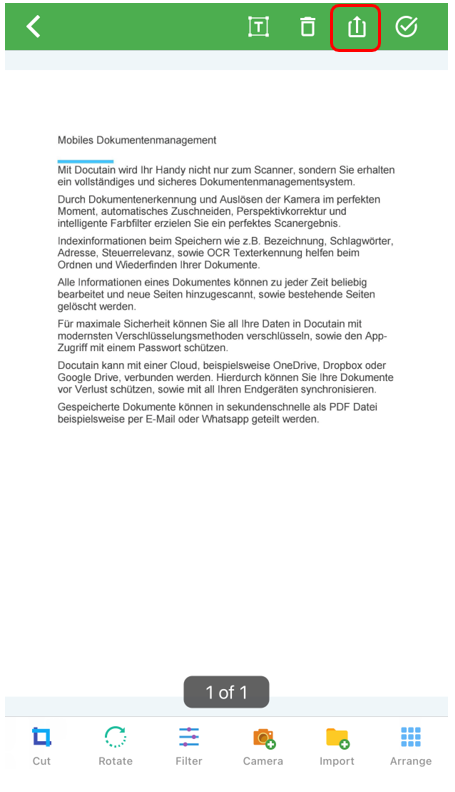
Scan the desired document as usual or import an image or a PDF-file via the import functionality. Afterwards, the edit mode opens.
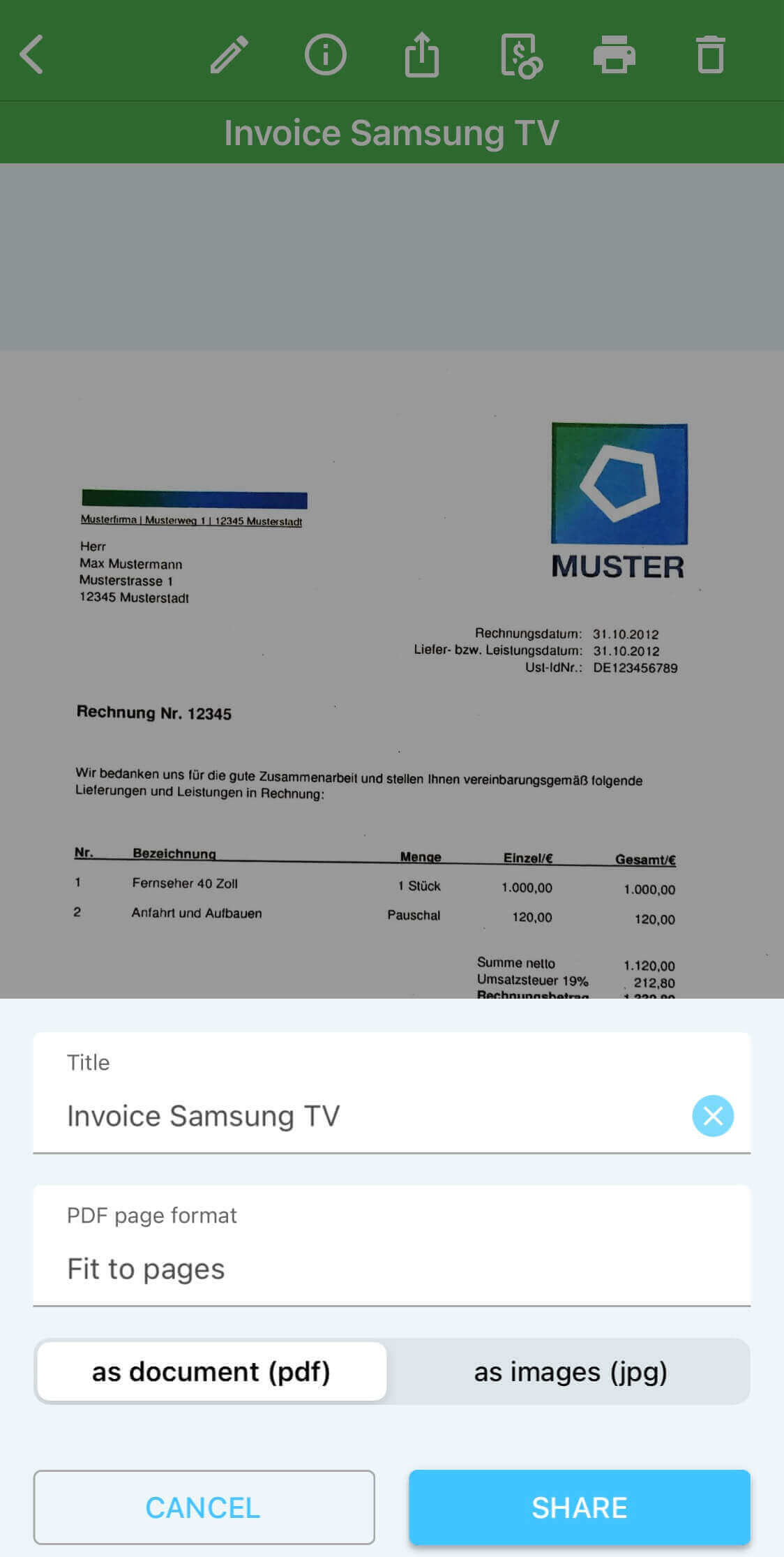
Tap on the "Share" icon in the upper toolbar and select if you want to share your document as PDF or JPG. Here you also can change the document title before sharing it. You can save the document after sending or mark it as "delete afterwards", if the file is no longer needed.
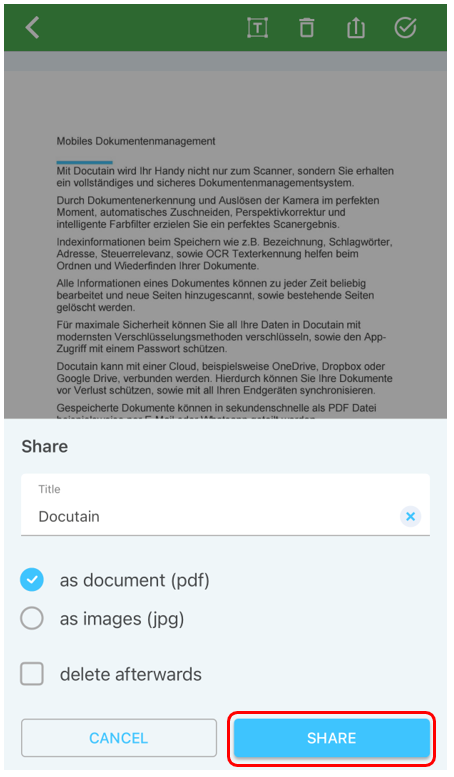
A pop-up opens, in which you can select the right app for sharing the document.
2. Send a saved document
Here you have two options to send the document.
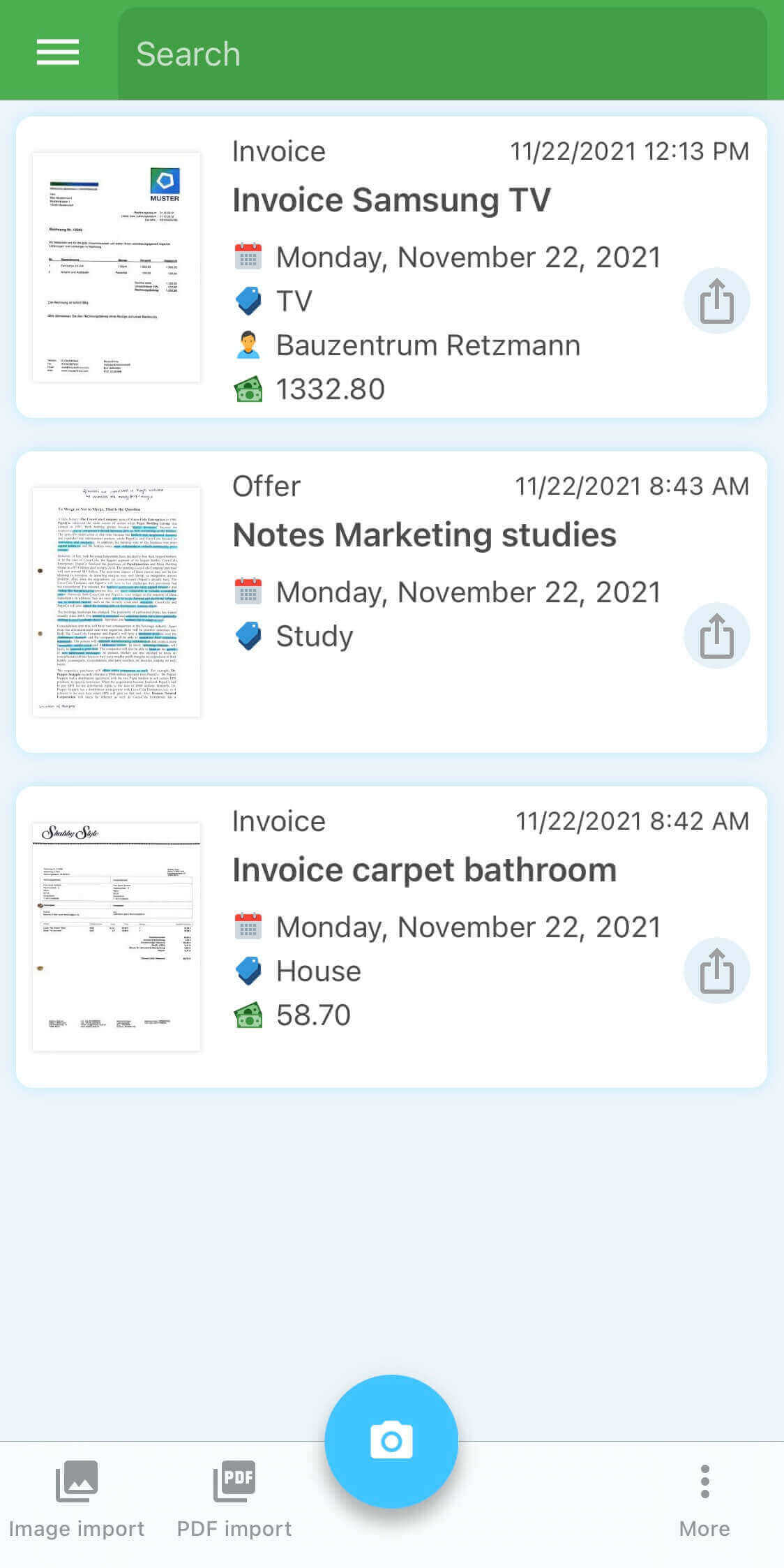
1. Tap on the "Share icon" behind your document in the "Recent documents" view.
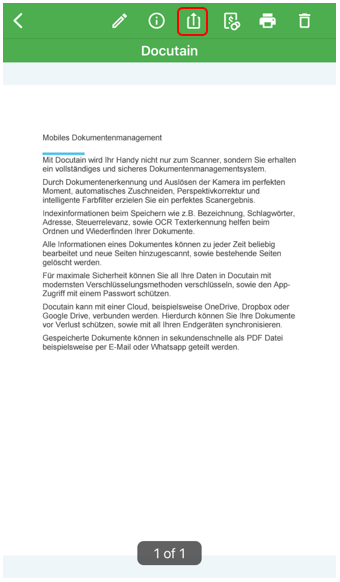
2. Display the appropriate document and tap on the "Share" icon in the toolbar as shown in the picture. Then you can choose between PDF and JPG as format and change the name of the document. Confirm your selection by tapping on "Share". Another pop-up appears, in which you can select the right app for sharing the document.
3. Send multiple documents at once
In the list of your recent documents or the search results after a search, you have the option of sending several documents at once.
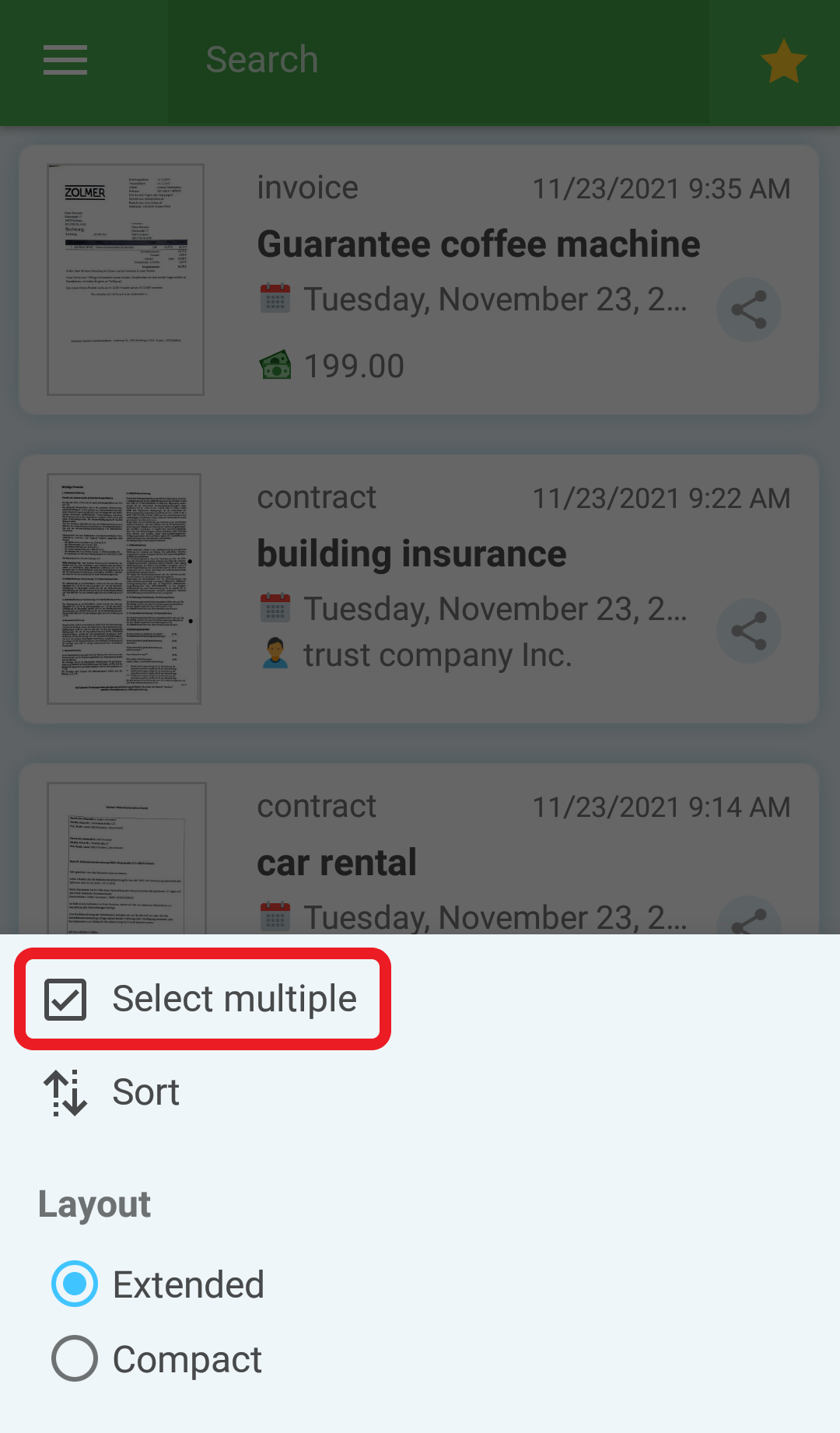
Tap and hold on any document to activate the selection of multiple documents or tap under Last Document on the "3-point symbol" and then on "Select multiple".

Pick the appropriate documents you want to share and tap "Share":
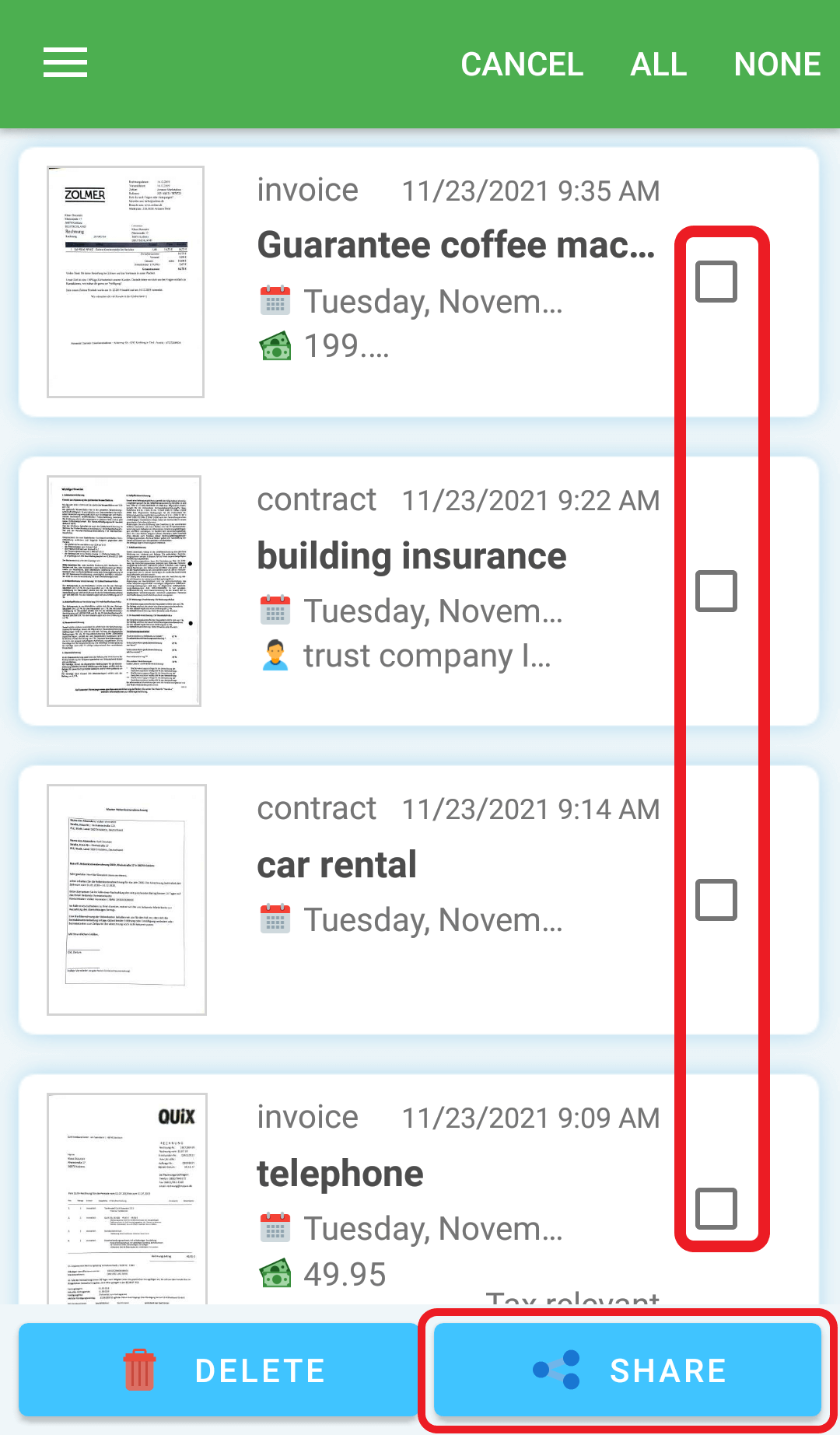
A pop-up opens, in which you can select the right application.
Alternatively you can also use the “search” first, to get only relevant documents and then select and share the desired documents, as described.
Comments
0 comments
Please sign in to leave a comment.