
To protect your documents from loss and synchronize them with all your devices, you can link Docutain to a cloud provider of your choice. iCloud, Dropbox, Google Drive, OneDrive, STRATO HiDrive, MagentaCLOUD, Web.de, GMX Cloud, Box, WebDAV, Nextcloud, ownCloud can be choosen and others are already in development.
If you would like to find out how this works, we have listed the options below:
1. Establish the cloud connection
2. Switch to another cloud provider
1. Establish the cloud connection
You are already using the Docutain app and want to connect it to the cloud now?
We explain how it works in this section.
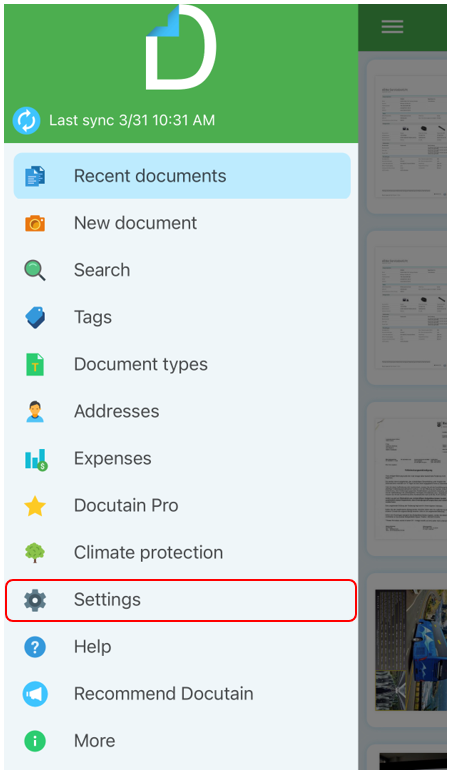
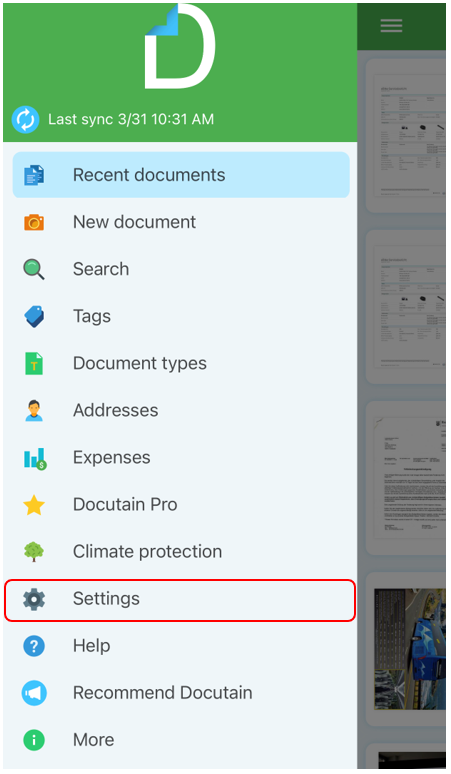
Open the main menu and top on "Settings".
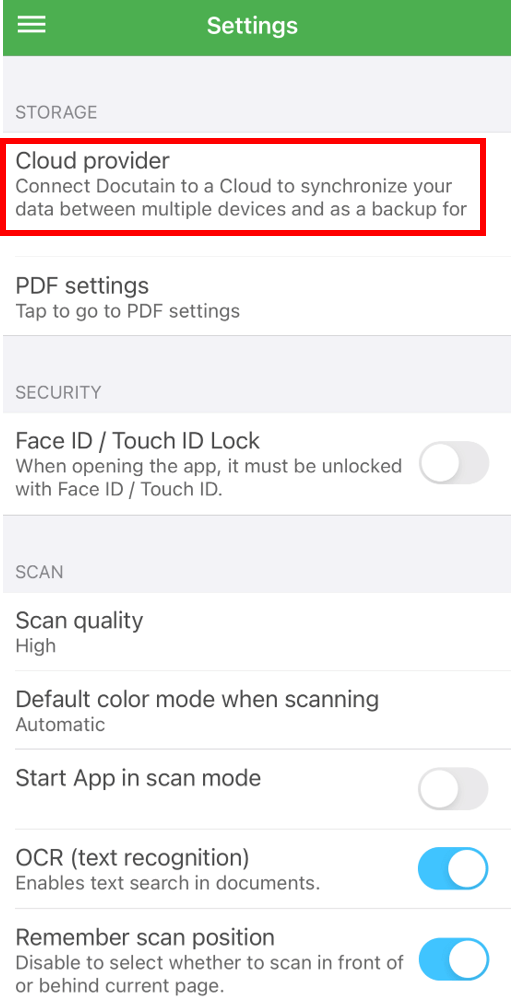
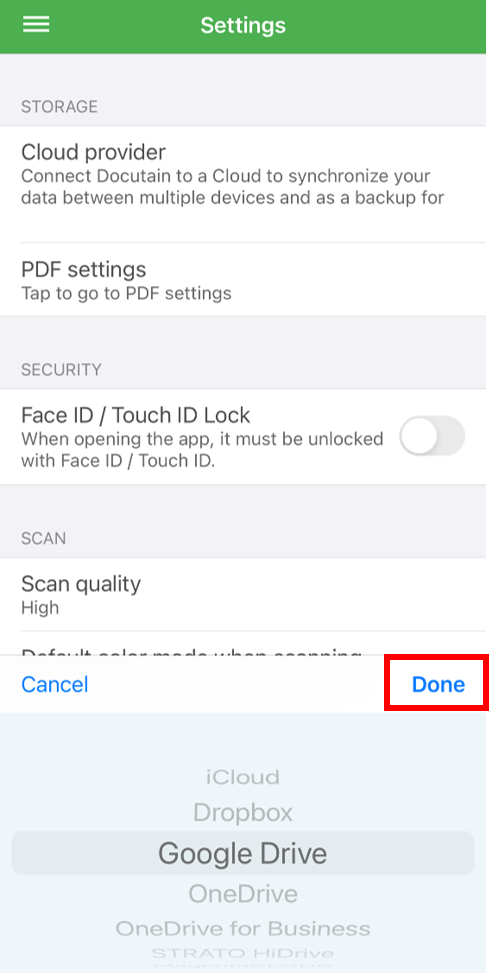
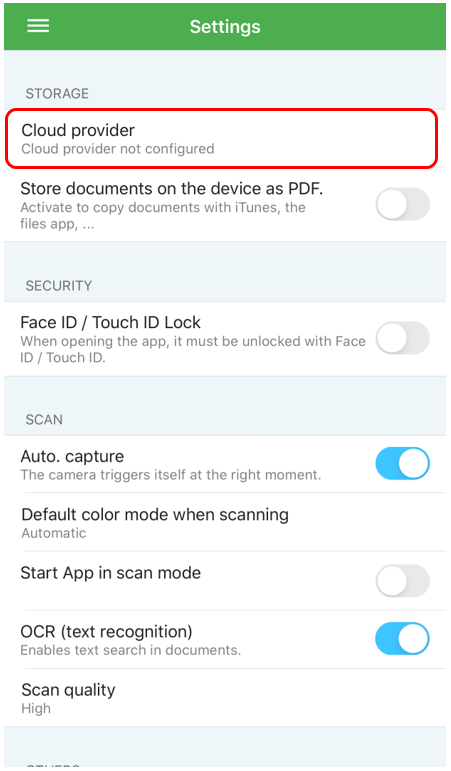
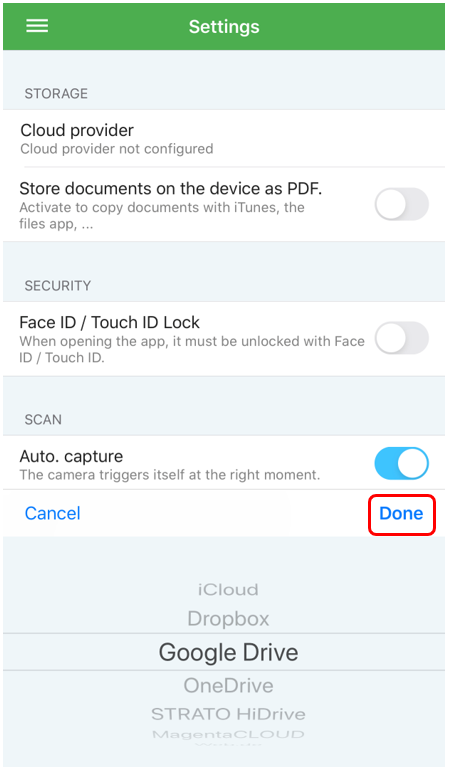
Now tap on "Cloud provider" and select a cloud provider of your choice from the list and confirm the selection with "Done".
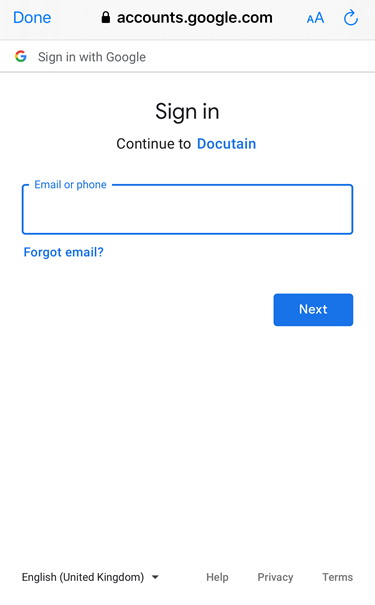
In the next two screens, you have to enter your cloud login details.
In our example we have selected Google Drive.
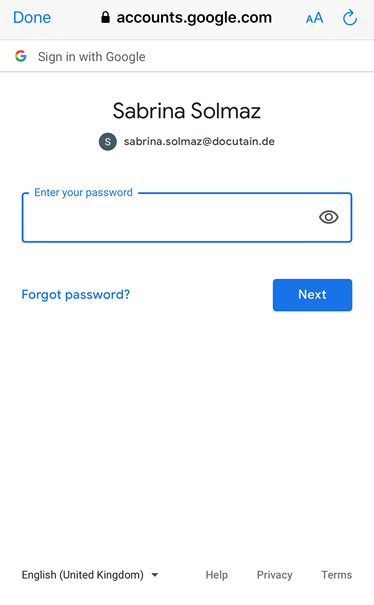
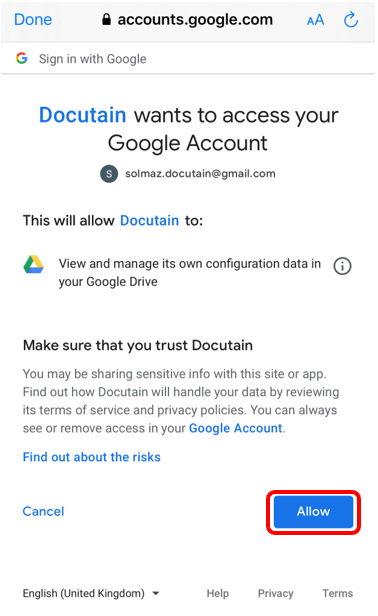
After you have entered the login details, you must grant Docutain access.
Tap on "Allow".
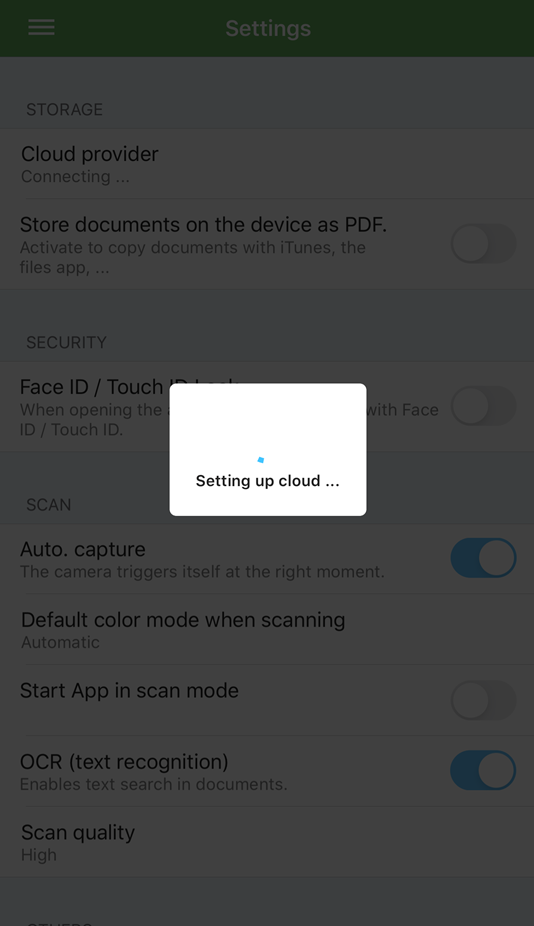
Your cloud is now being set up.
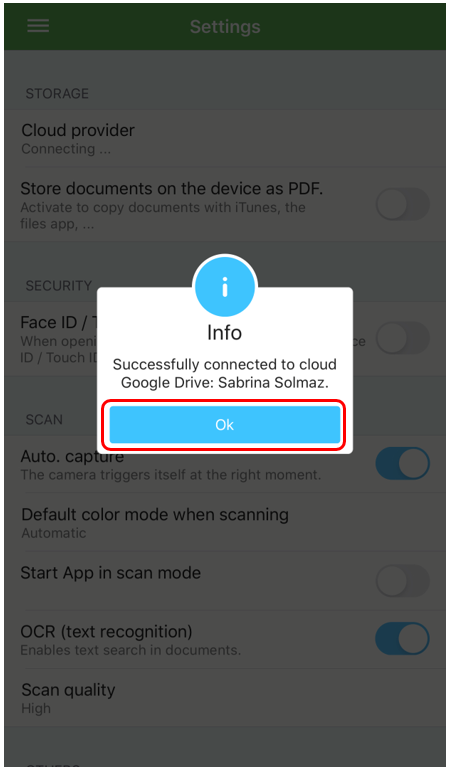
After completing the setup, confirm the next window with "OK".
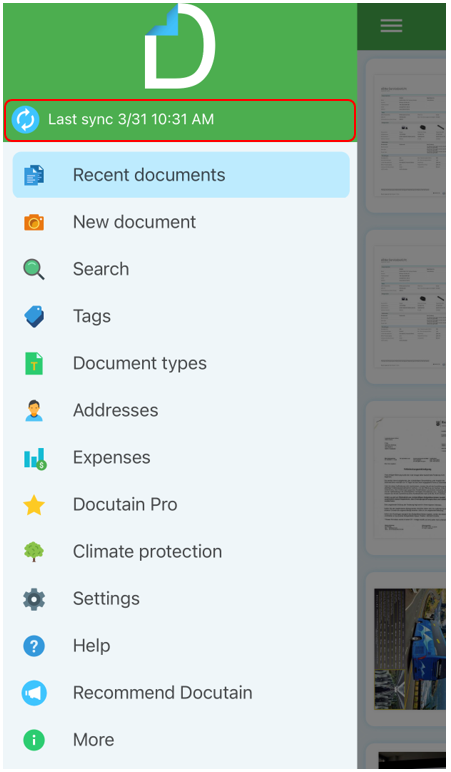
At main menu, you can always see your last synchronization state.
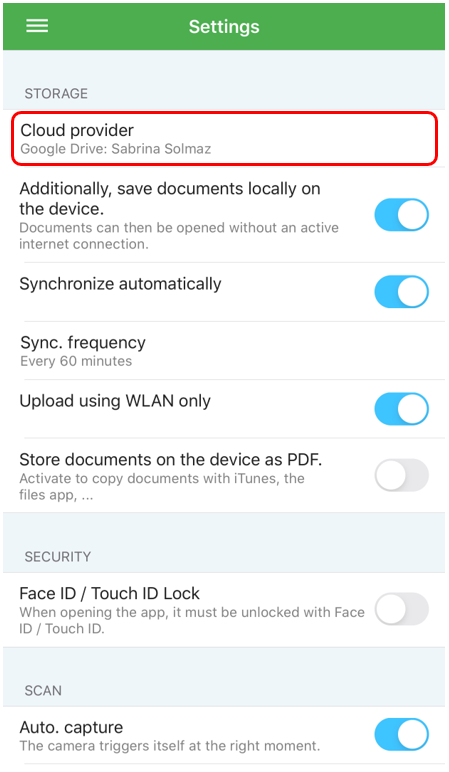
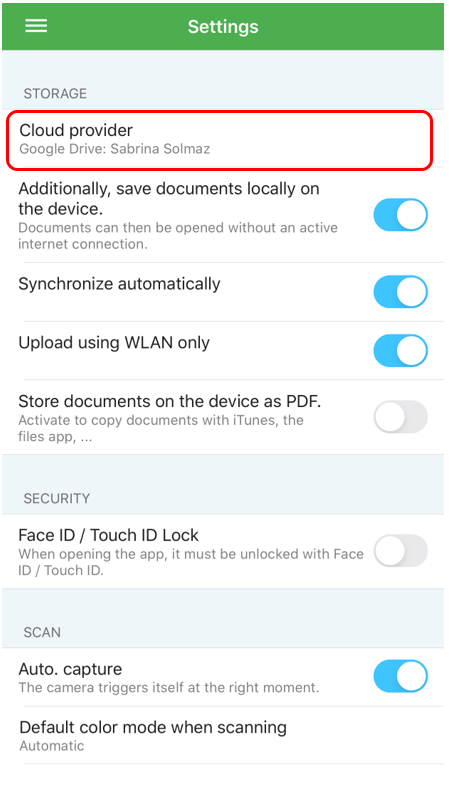
You can also see your current cloud provider and the associated account in the app settings. There you have also the possibility to switch to another cloud provider (check point 2).
2. Switch to another cloud provider
You have already connected Docutain with a cloud, but you would like to change your cloud provider? How this works is explained in this section:
Note: We recommend migrating the cloud only with a stable WLAN connection, as the move may take several minutes depending on the number/size of documents and the speed of the internet connection. The data in the previous cloud will be deleted after the data has been migrated to the new cloud.
The migration affects all devices connected to the current cloud. These devices will receive an appropriate message the next time they try to synchronize and will get the login dialog for the new cloud afterwards.
Please do not cancel a migration manually under any circumstances!
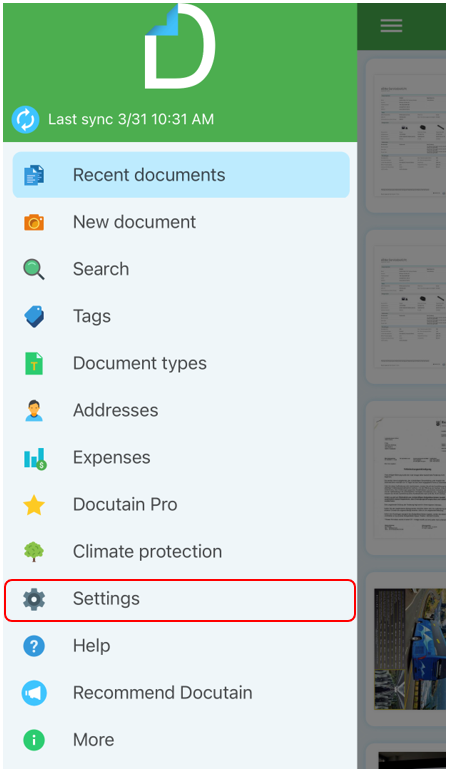
Open the main menu and top on "Settings".
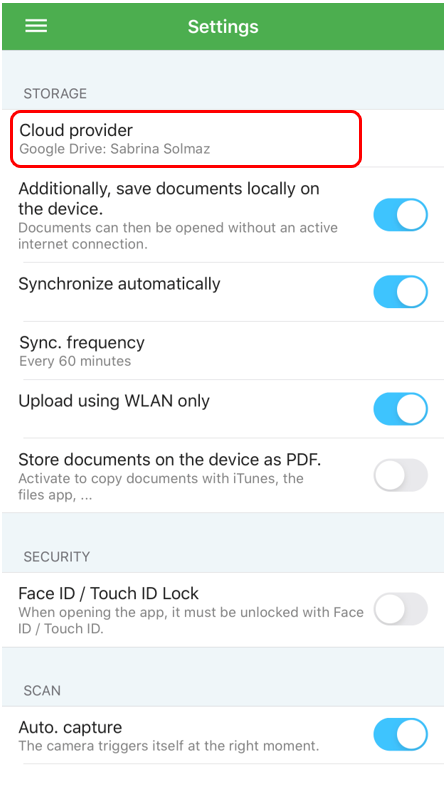
Now tap on "Cloud provider" and select your new cloud provider from the list and confirm the selection with "Done".
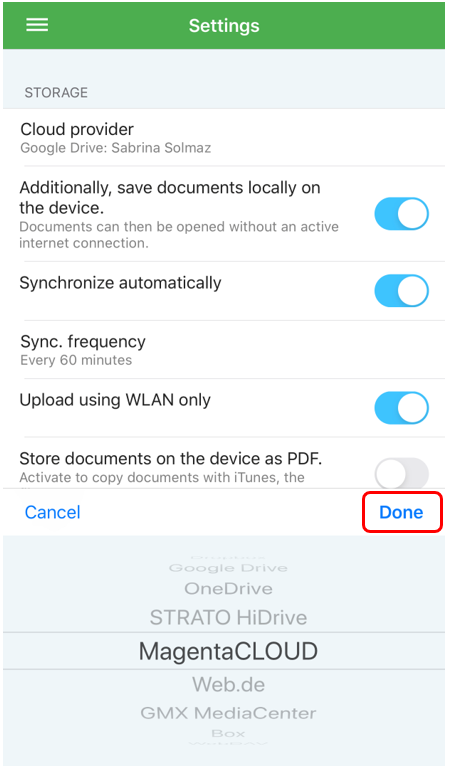
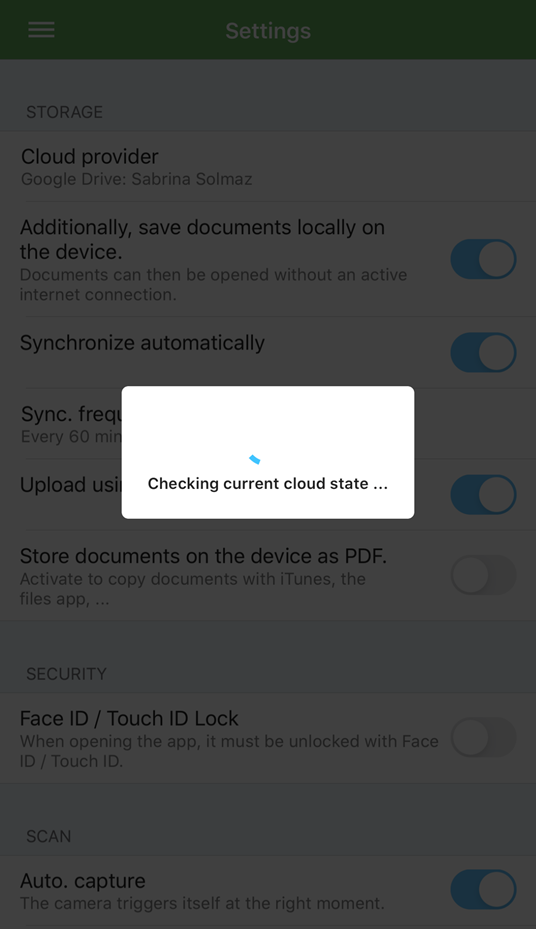
Docutain is checking the current cloud state and is connecting to your cloud provider.
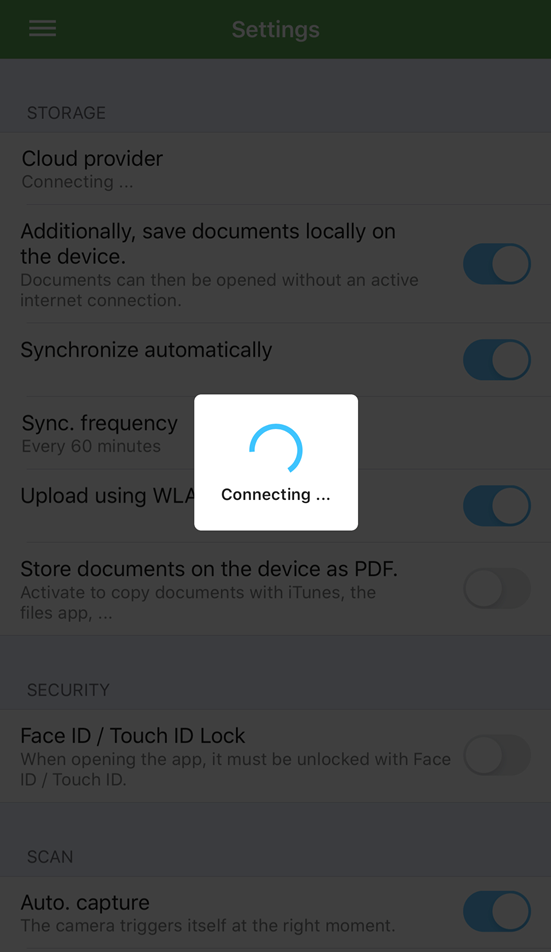
Please enter your Cloud login data and tap on "Login".
In our example we switch from Google Drive to Magenta Cloud.
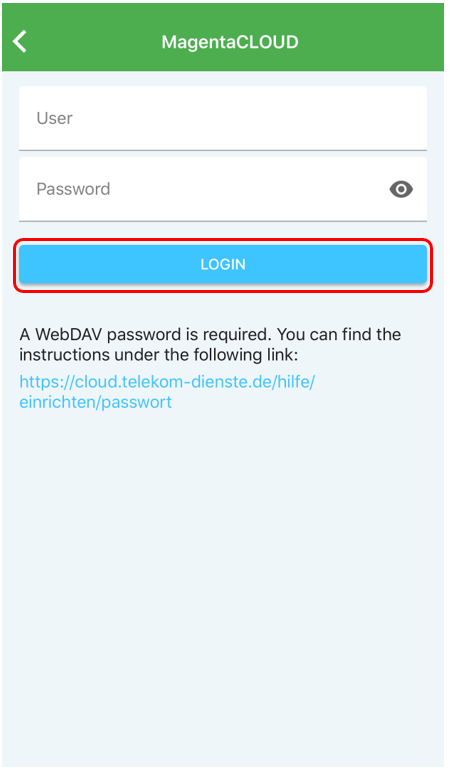
The cloud data will be migrated from Cloud A to Cloud B.
Afterwards the old data will be deleted in Cloud A, you can see this progress in the next two pictures.
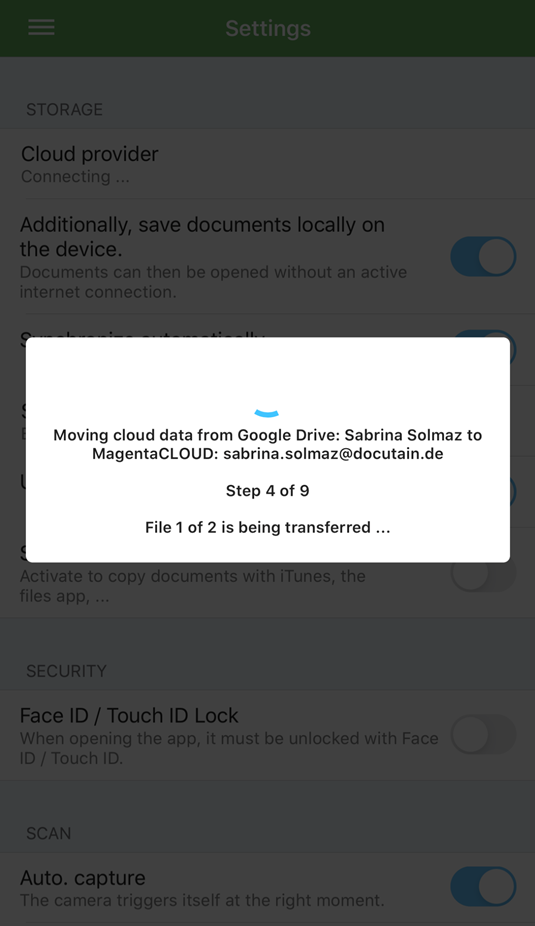
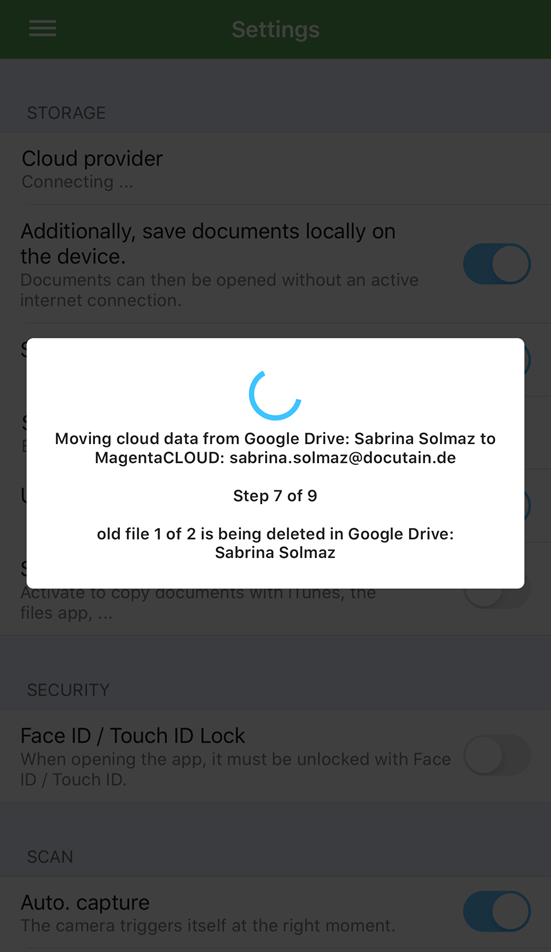
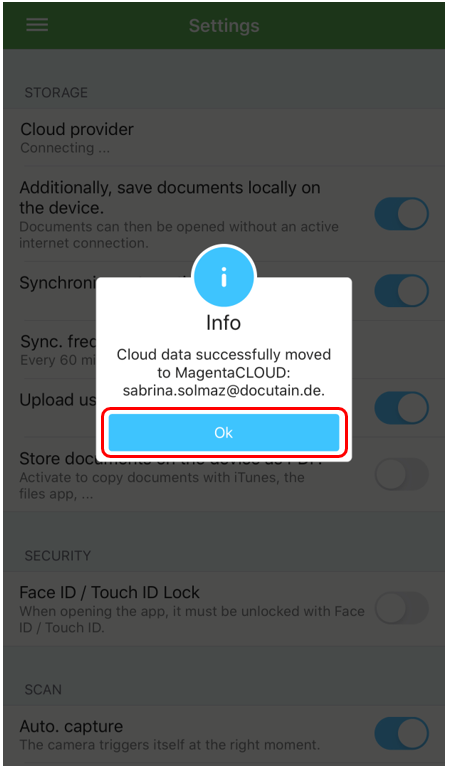
Please confirm the following information that your data has been successfully moved with "OK".
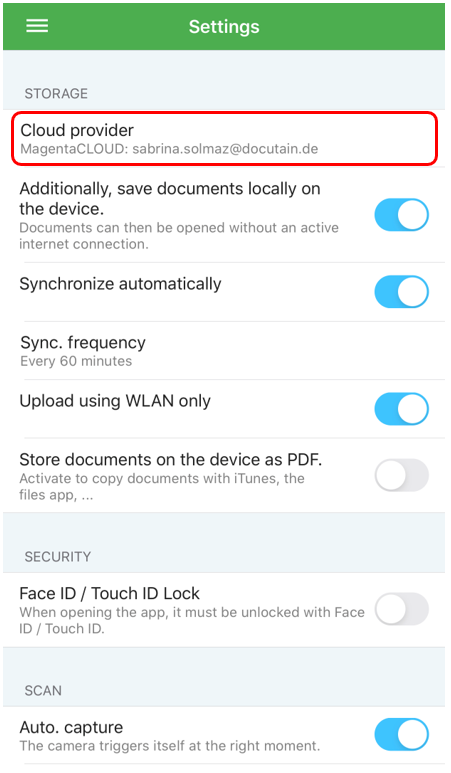
At Cloud provider you can see your newly connected cloud account.
3 Connect further devices
Connect further devices later on
Connect further devices with Docutain for Windows-Desktop
Connect further devices later on
You are already using the Docutain App and would like to connect your mobile device to your other devices? In this section we explain how this works:
Open the main menu and tap on "Settings".
Now tap on "Cloud provider" and select your cloud provider from the list and confirm the selection with "Done".
In the next two screens, you have to enter your cloud login details.
Here in our example we have selected Google Drive.
After you have entered the login details, you must grant Docutain access.
Tap on "Allow".
Your cloud is now being set up.
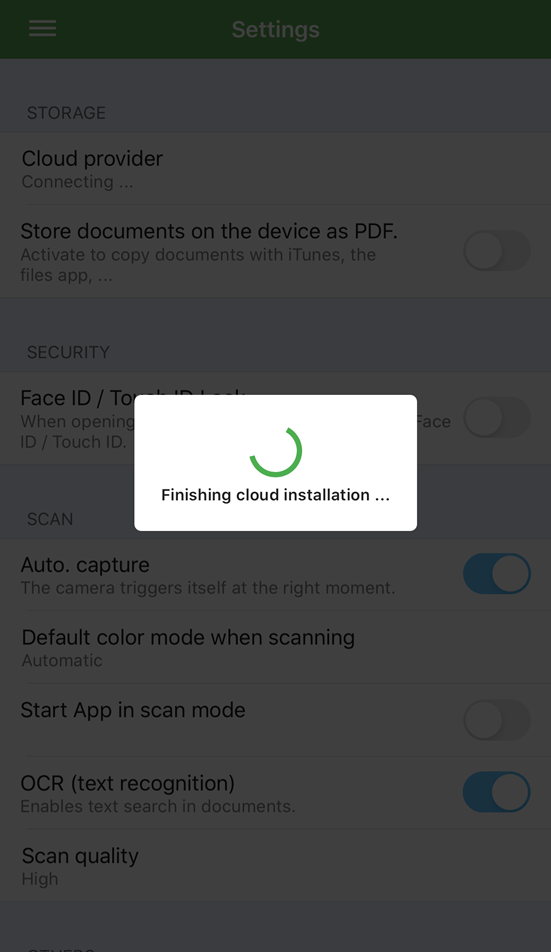
After successful setup, you will receive information about it, which you can confirm with "OK". The documents are loaded in the background. You can also confirm this information with "OK".
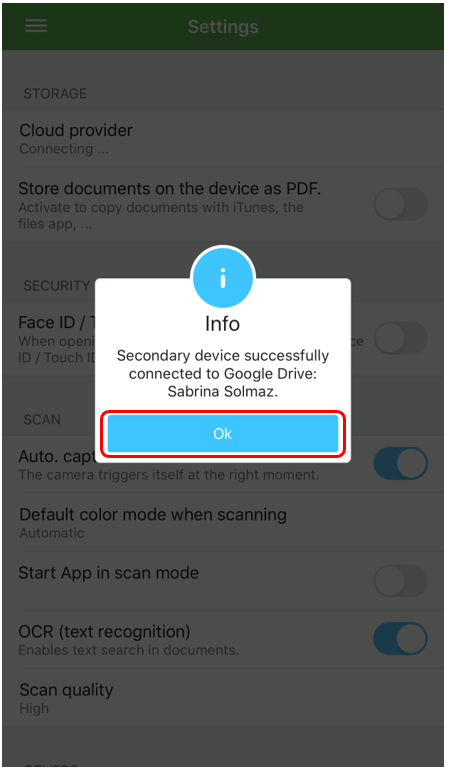
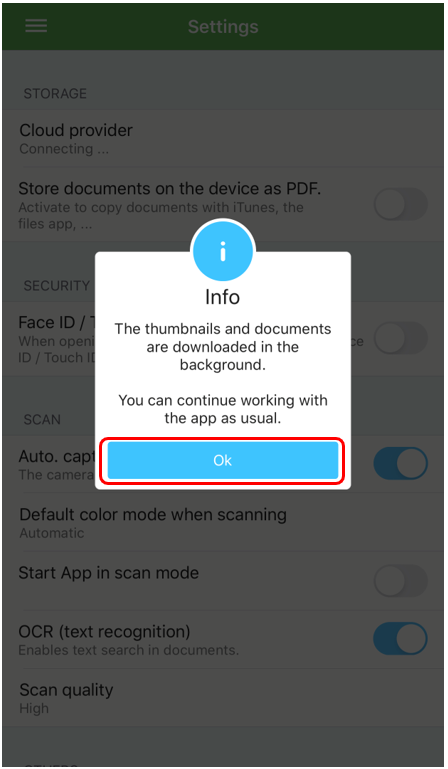
After set up is completed you can see your cloud provider and the associated account in the settings.
Connect further devices with Docutain for Windows-Desktop
If you want to conntect your device with Docutain for Windows-Desktop, please follow this article: How to connect Docutain mobile (iOS/Android) with Windows desktop?
Comments
0 comments
Please sign in to leave a comment.